UTM Parameters Not Working in GA4? 14 Reasons & Fix Guide
Last Update: April 26, 2026
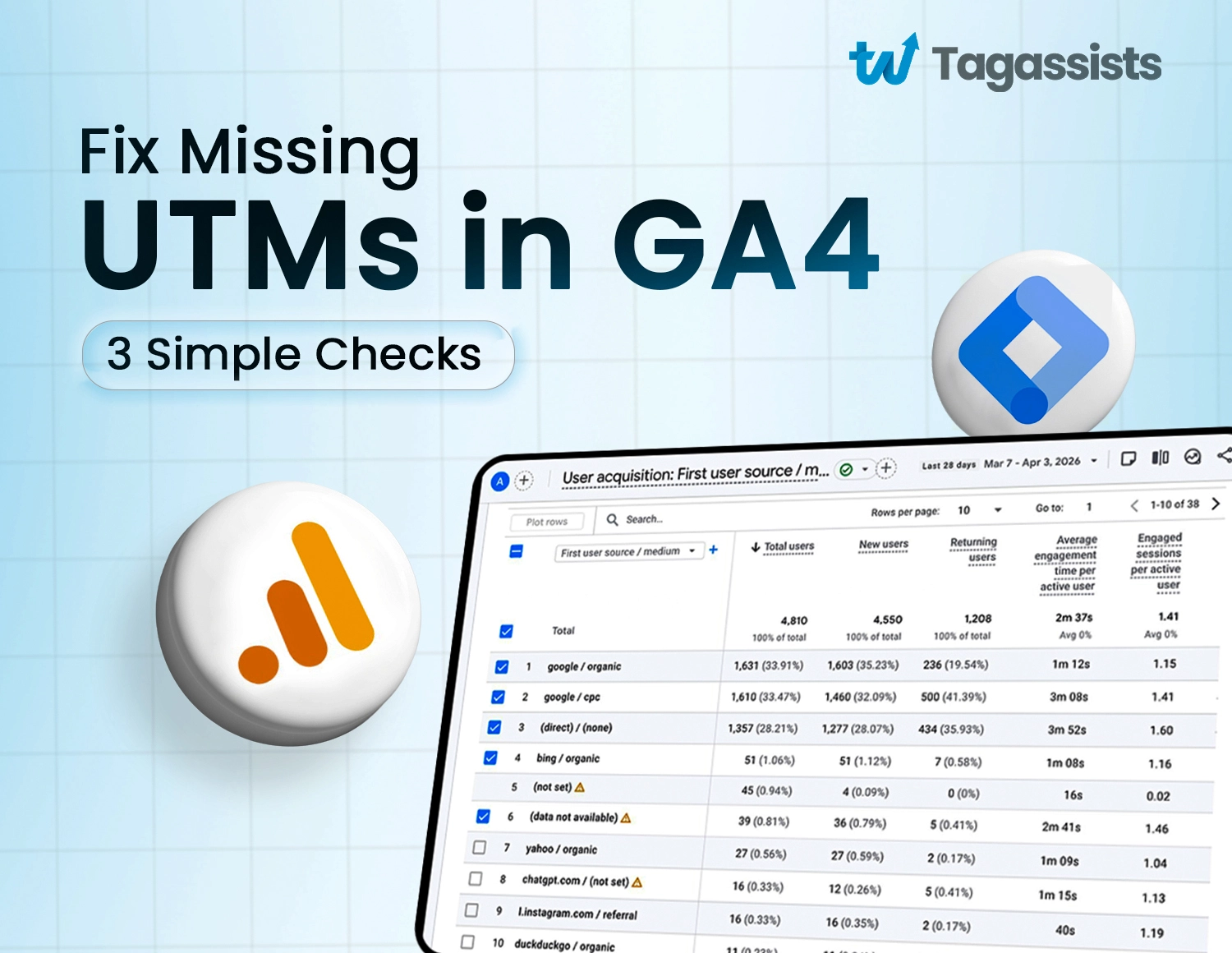
While checking your campaign performance in GA4, you might suddenly notice something strange. The traffic you expected to see from your UTM links is missing, or it is showing up as “Direct” instead.
The problem can come from several places. Common reasons
- Improper Formatting
- URL Redirects
- Consent Mode Issues
- Case Sensitivity
- Missing GA4
- Tracking Code
- Internal Links
- Data Latency
At Tagassists, we’ve audited and fixed tracking setups for 100+ ad accounts across industries like eCommerce, SaaS, and lead generation — and broken UTM tracking is one of the most common issues we encounter. Here’s what we’ve learned.
14 Common Reasons UTM parameters are not working in GA4
Common reasons UTM parameters are not working in GA4 include redirects, incorrect or unsupported UTM formatting, and delays in data processing.
Let’s know 14 more.
Reason #1: Server Redirects
Server redirects can remove UTM parameters before the page fully loads.
For example, you share a link with UTMs, but the server redirects users from HTTP to HTTPS, or from non-www to www. If the redirect is not configured properly, the UTM parameters may get dropped during the redirect process.
When that happens, GA4 never sees the campaign data. It only sees a clean URL without UTMs.
Reason #2: JavaScript Redirects
JavaScript redirects happen inside the browser after the page loads.
If your landing page immediately redirects users using JavaScript, the UTM parameters may disappear before GA4 reads them. This is common on landing pages built with custom scripts or page builders.
If the redirect runs too fast, GA4 cannot capture the original campaign source.
Reason #3: Invalid UTM Parameter or Typos
UTMs must follow the correct format.
If you write utm_sorce instead of utm_source, GA4 will not recognize it. The same happens if you use wrong capitalization or add extra spaces.
Even small spelling mistakes can break tracking. Always double-check parameter names before publishing links.
Reason #4: UTMs Are Removed on Tag or Tracking Code Level
Sometimes the website loads correctly with UTMs in the URL, but the tracking setup removes them internally.
This can happen if Google Tag Manager or custom scripts modify the page URL before GA4 reads it — and the same GTM misconfigurations can also cause duplicate events in GA4. If the tracking code reads a cleaned version of the URL, campaign data will not be recorded. The URL looks fine to the user, but GA4 never receives the UTM values.
Reason #5: Link Was Clicked in the Middle of a Session
GA4 attributes campaign data at the start of a session.
If someone is already browsing your site and then clicks a UTM link in the same browser session, GA4 may not start a new session. In that case, the new UTMs might be ignored.
This often confuses marketers during internal testing.
Reason #6: Missing Tracking Code on the Landing Page
If the landing page does not have the GA4 tracking code installed, nothing will be tracked. This can even cause Google Analytics to show zero visitors.
Users may land on that page from a campaign, but GA4 never loads. No pageview means no campaign attribution.
Always check that your Google tag is installed on every landing page.
Reason #7: Consent-Related Issue
If you use a cookie consent banner, analytics may be blocked until users give permission.
When users reject cookies, GA4 might not fire at all. Even if UTMs are present in the URL, the tracking code does not run. This results in missing or incomplete campaign data.
Reason #8: Google Analytics 4 Is Inside an iFrame
If GA4 is loaded inside an iframe instead of the main page, it may not access the full page URL.
UTM parameters exist in the main browser URL, but the iframe might not see them. As a result, campaign data does not get captured properly.
This setup often causes tracking inconsistencies.
Reason #9: Delays in Data Processing
Sometimes the issue is not technical. It is just a delay. GA4 does not always show data instantly in standard reports. It can take several hours for campaign data to appear.
Before troubleshooting deeply, check the Realtime report to confirm whether data is coming in.
Reason #10: Unsupported UTM Parameter
GA4 only recognizes standard UTM parameters like:
- utm_source
- utm_medium
- utm_campaign
- utm_term
- utm_content
If you create custom parameters like utm_channel or utm_name, GA4 will ignore them unless you configure custom dimensions.
Unsupported parameters will not appear in campaign reports.
Reason #11: Website Strips UTM Parameters
Some websites automatically clean URLs for aesthetic or security reasons. When the page loads, scripts remove everything after the question mark. This includes all UTM parameters. The visitor still reaches the correct page, but campaign tracking is lost.
Reason #12: GA4 Configuration Tag Fires Too Late
If your GA4 configuration tag fires after another script changes the URL, the UTMs might already be gone. This often happens in Google Tag Manager when triggers are not set correctly.
The tag loads, but it reads the wrong version of the URL.
Reason #13: GA4 Tracking Code Is Not Valid
Sometimes the tracking ID is incorrect. Maybe the Measurement ID is wrong, or the property was deleted, or the code was copied incorrectly. In this case, data is sent nowhere.
Even though UTMs are correct, GA4 cannot process them because the tracking setup is broken.
Reason #14: GA4 Code Is Valid but Does Not Fire
The tracking code may be installed, but it does not trigger. This can happen due to incorrect GTM triggers, JavaScript errors, ad blockers, or conflicts with other scripts. If the tag does not fire, no pageview is recorded.
No pageview means no UTM attribution.
There are tons of tools out there to improve website analytics, but today we are discussing three most useful tools for your website analytics.
How to Diagnose Your Missing UTMs: A 3-Step Plan
UTM Parameters Not Working in GA4?
Fix your tracking issues and start capturing accurate campaign data today.
When UTM data does not appear in GA4, the best approach is to test step by step. Do not assume the problem is with the campaign link immediately. Sometimes the issue is in redirects, tracking setup, or reporting delays. This quick process helps you confirm where the problem actually is.
Step 1: Test Your Link Live
Start by testing the campaign link yourself. Open the exact URL that contains the UTM parameters in a new browser tab or an incognito window.
When the page loads, check the browser address bar. Make sure the UTM parameters are still there. If the parameters disappear after the page loads, it usually means a redirect or script is removing them.
Also, check if the page redirects to another URL. Many websites redirect from HTTP to HTTPS, or from a non-www version to a www version. If the redirect is not configured properly, UTMs may get lost during that process.
This step helps you confirm whether the UTM parameters survive when the page loads.
Step 2: Check GA4 DebugView
Next, check if GA4 is actually receiving the campaign data.
Open your GA4 property and go to DebugView. Then visit your test link again. If GA4 is tracking correctly, you should see a new event appear in DebugView within a few seconds.
Click on the event and check the traffic source parameters. You should see values for source, medium, and campaign that match your UTM parameters.
If the event appears but the UTM values are missing, GA4 is not reading the parameters correctly. This usually points to tag configuration problems, consent blocking, or scripts modifying the URL.
Step 3: Check the Standard Reports (After 48 Hours)
Finally, check the standard GA4 reports.
Sometimes marketers panic because campaign data does not appear immediately. GA4 reporting is not always instant. While Realtime and DebugView update quickly, standard reports can take longer to process.
Give the system up to 24–48 hours. Then go to the Traffic Acquisition or User Acquisition reports and look for your campaign.
If the campaign still does not appear, the problem is most likely related to the tracking setup or the way UTMs are implemented.
Conclusion
UTM tracking problems in GA4 are more common than most people think. The issue may come from small setup mistakes like redirects, incorrect parameters, or tracking tags that are not firing properly — similar to issues seen with Google Ads conversion tracking not working. The good part is that once you know where to look, these problems are usually easy to fix.
Take a little time to test your links, check your tracking setup, and review your reports. When everything is configured correctly, UTM parameters give you a clear picture of where your traffic and campaigns are actually coming from.

Tagassists
We track every click, visit, and conversion accurately using Google Tag Manager, GA4, Meta Pixel, and other ad platforms. At Tagassists, we help businesses set up proper tracking and analytics so they can clearly understand how their ads perform. Our goal is to turn marketing data into simple insights that help improve campaigns and maximize ROAS.