Google Analytics Search Terms Tracking: Setup, Reports, and Insights
Last Update: June 21, 2026
GA4 is installed, the data is flowing, and everything looks fine, until a client asks which keywords are actually bringing people to the site, and the answer is a column full of “(not provided).”
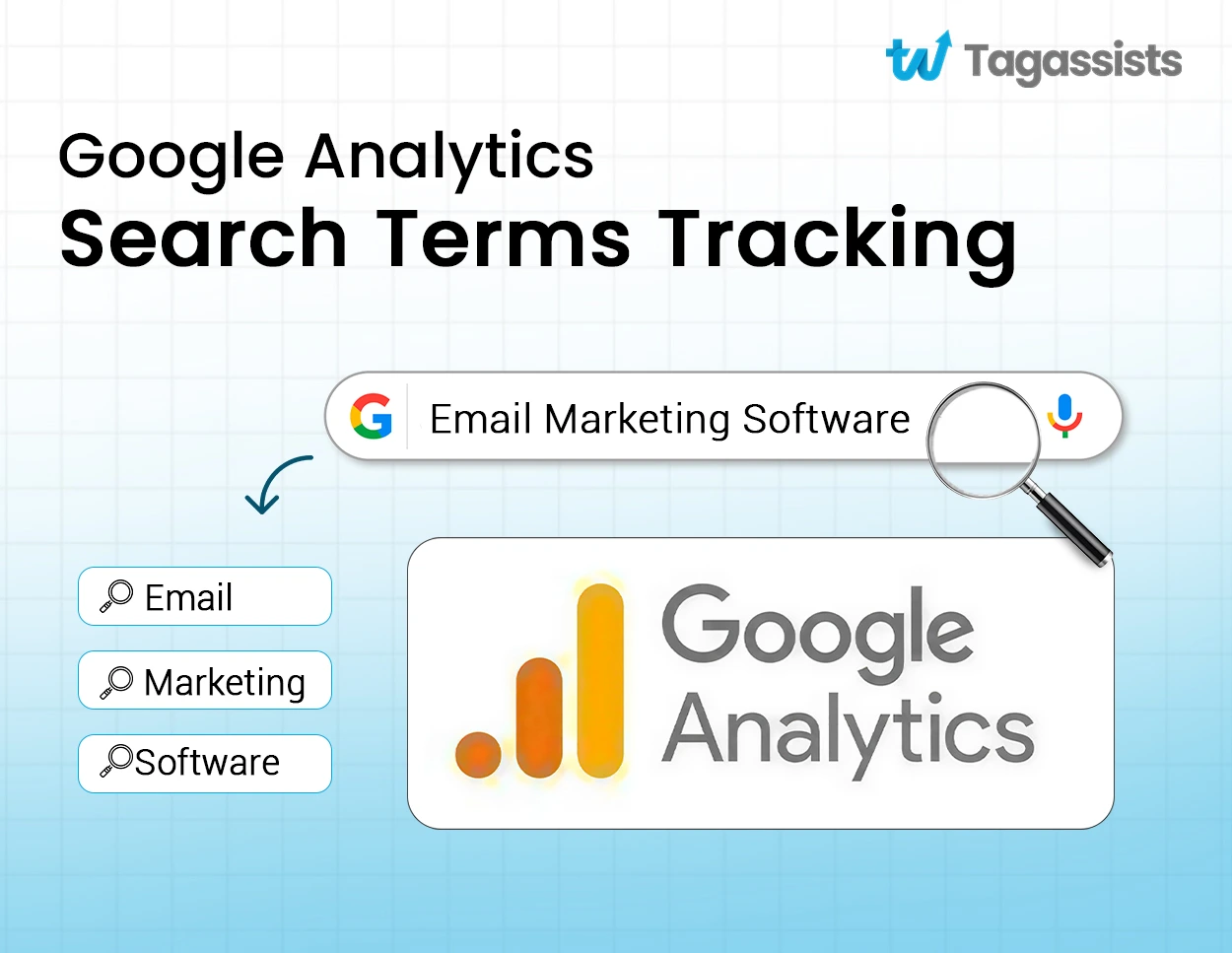
That gap trips up a lot of marketers and business owners. GA4 tracks two entirely different types of search terms: what visitors type into the search bar on the site itself, and what they typed into Google before arriving. Most setups capture one at best. Often neither is configured correctly, which means decisions about content, SEO, and paid campaigns are being made on incomplete data.
Missing on-site search data means no visibility into what visitors couldn’t find after landing. Missing organic keyword data means no clear picture of what drove them there in the first place. Lose both, and the only thing left is traffic volume with no context behind it.
At Tagassists, we’ve audited enough GA4 properties to know this is one of the most common and most overlooked gaps in any analytics setup. Today, we will cover everything needed to fix it: how each type of search term works, where the data lives in GA4, how to set up tracking correctly for different site types, and how to use that data to improve content, SEO, and the on-site experience.
Why are Site Search Reports valuable?
Site search data is one of the most honest signals on a website. Visitors are literally telling you what they want, in their own words, in real time.
Most analytics reports show behavior after the fact. Site search shows intent as it happens, and that gap makes it uniquely useful for content, UX, and product decisions.
Here is what you can actually do with it:
- Audit search result quality. Pick the most-searched queries, run them yourself, and check what comes back. Are the top results relevant? Are hidden or outdated pages surfacing where they should not? Tedious work, but it catches problems no heatmap will show you.
- Find content gaps. If a topic gets searched repeatedly and nothing relevant exists on the site, that is not a traffic problem. It is a content opportunity. Ahrefs or Search Console show external keyword demand. Internal site search shows demand from people who are already there and still cannot find what they came for.
- Spot navigation failures. High search volume for a page that already exists usually means it is buried. Nobody should have to search for something sitting in the main menu.
- Uncover zero-result searches. Queries returning nothing are a direct signal: visitors expect something the site does not offer. That is either a product gap or a content gap, depending on the business.
- Improve UX where it counts. High exit rates on search result pages mean results are irrelevant, incomplete, or hard to scan. A specific, fixable problem; not a vague UX recommendation.
- Inform paid and organic strategy. Internal search terms are unfiltered long-tail data from real buyers. Often more specific than anything a keyword tool surfaces, and worth feeding into ad campaigns, product pages, and landing copy.
- Lift conversions. People who use internal search tend to have higher purchase intent than passive browsers. What they see after searching directly affects whether they buy.
The Two Types of Search Terms in Google Analytics
A search term, in analytics, is the word or phrase someone typed to find something. GA4 can capture two entirely different kinds, and they live in completely separate places.
The first is what users type into the search bar on the site itself. The second is what they typed into Google before arriving. Both matter. Most businesses only have one setup.
1. Tracking Internal Site Searches (On-Site)
On-site search terms are the queries visitors type into a website’s own search box. In GA4, this data is captured under the view_search_results event when Enhanced Measurement is enabled.
When a search triggers a URL change, say, yoursite.com/?s=keyword, GA4 picks up the query and attaches it as a search_term parameter to that event. It shows up in Explorations right away, and with one extra configuration step, in standard reports too.
Setup is simpler than most expect. Go to Admin, then Data Streams, then your web stream, and turn on Enhanced Measurement. GA4 looks for common query parameters by default: q, s, search, query, and keyword. If the site uses one of those, data starts flowing immediately.
If the URL does not change after a search, or the term is not visible in the URL at all, a custom GTM setup is needed.
Why track on-site search?
- Identify content gaps. If users repeatedly search for terms that return no results or irrelevant ones, that is a clear signal about what the site is missing.
- Fix navigation problems. High search volume for a page that already exists usually means it is three levels deep in a menu no one is finding.
- Improve conversion rates. Internal searchers convert at significantly higher rates than passive browsers. What they see after searching directly affects revenue.
2. Tracking Organic Google Search Queries (Off-Site)
Off-site organic search terms are what people typed into Google before clicking through to a site. This data does not live in GA4. It lives in Google Search Console.
Since Google moved to encrypted search, roughly 99.0% of organic keyword data shows up as “(not provided)” in GA4 and every other web analytics platform. No setting fixes this. It was a deliberate privacy decision by Google, and it applies across the board.
Search Console is the only reliable way to see pre-arrival queries. It shows impressions, clicks, average position, and the actual search terms driving traffic to specific pages. Connecting Search Console to GA4 surfaces some of this inside GA4’s own reports, but Search Console remains the primary home for that data.
Key difference: on-site = post-click intent, organic = pre-click intent
The key difference between the two:
- On-site search reveals post-click intent: what visitors could not find after landing on the site
- Organic search reveals pre-click intent: what visitors wanted before they arrived
Most businesses have one of these set up, rarely both. On-site tracking tends to get skipped because it requires a small additional configuration step beyond the standard GA4 install. Organic tracking gets overlooked because most people assume GA4 shows it, then get confused by “(not provided)” and stop looking.
Businesses track Google Ads keywords or site search but forget to link GSC or register search params; result = only one view of intent.
These answer different business questions, and both are worth tracking.
On-Site Search | Organic Search (Google) | |
Where the data lives | GA4 (view_search_results event) | Google Search Console |
What it tells you | What visitors searched for on your site | What keywords drove traffic from Google |
Intent stage | Post-click (already on site) | Pre-click (still on Google) |
Setup required | Enhanced Measurement in GA4 | Search Console property + GSC/GA4 link |
Best for | Content gaps, UX issues, navigation audits | SEO strategy, ranking opportunities, CTR optimization |
Answers the question | “What couldn’t visitors find?” | “How did visitors discover us?” |
Why Google Analytics Doesn't Show Organic Keywords
GA4 shows “(not provided)” for organic keywords because Google stopped sending that data to third-party tools in 2011. This is not a bug, and there is no fix inside GA4.
- When a signed-in user searches on Google, the search runs over HTTPS. That encrypted connection means the query string never reaches the site, so GA4 never sees it. Google made this call on privacy grounds, and it applies to every analytics platform equally.
- Without Search Console, GA4 still shows landing pages, session source, engagement metrics, and conversions. Channel-level attribution works fine. What’s missing is the keyword itself.
- As for why paid keywords are visible but organic ones are not: Google Ads passes keyword data directly to GA4 through auto-tagging. A closed loop between two Google products. Organic search has no equivalent handshake, so that data stays inside Google’s own infrastructure. Search Console exists precisely because of this gap.
- If someone tells you there’s a way to recover organic keywords inside GA4, there isn’t. The data never arrives in the first place.
How to Set Up Internal Site Search Tracking in GA4: 2 Methods
For internal site search tracking, the right method depends on how the website’s search function works. If searches update the URL with a query parameter, Enhanced Measurement handles it automatically. If not, a custom GTM setup is needed (covered in the next section).
Method 1: Use GA4 Enhanced Measurement (Recommended)
To track internal site search in GA4, Enhanced Measurement needs to be enabled and configured with the site’s search query parameter. GA4 handles this automatically for most sites, capturing searches under the view_search_results event.
Phone Call Conversion Tracking
Before touching GA4, find the parameter the site uses to process searches.
- Go to the live website and run a test search for any word, like shoes.
- Look at the URL that loads in the browser address bar.
- Find the character or word that appears right after the question mark and before the equals sign.
- Example 1: yoursite.com/?s=shoes — the parameter is s
- Example 2: yoursite.com/?query=shoes — the parameter is query
Step 2: Enable Site Search in GA4
- Open GA4 and click the Admin gear icon in the bottom-left corner.
- Go to Data Streams and select the web data stream.
- Make sure the Enhanced Measurement toggle is turned on.
- Click the gear icon inside the Enhanced Measurement card.
- Scroll to Site Search and click Show advanced settings.
- GA4 already recognizes these default parameters: q, s, keyword, search, query.
- If the site uses something different, type it into the Search Term Query Parameter box. Separate multiple parameters with a comma.
- Click Save.
Step 3: Register the Search Term Custom Dimension
Without this step, GA4 collects the data but won’t surface the actual search words in standard reports.
This is the step most people skip, and it’s why search terms show up in DebugView but nowhere useful in reporting.
- In the Admin panel, go to Custom definitions under Property settings.
- Click Create custom dimension.
- Fill in the fields exactly like this:
- Dimension name: Search Term
- Scope: Event
- Event parameter: search_term (lowercase, with an underscore, exactly as written)
- Click Save.
A few things worth knowing here. GA4 allows a maximum of 50 event-scoped custom dimensions per property, so use them deliberately. The search_term parameter also has a 100-character string limit. GA4 silently truncates anything longer, so if the site allows very long search queries, that is worth keeping in mind.
Step 4: Verify the Setup
Standard reports take 24 to 48 hours to populate, but real-time verification works immediately.
- Run a test search on the website.
- In GA4, go to Reports, then Real-time.
- Find the Event count by Event name card and look for view_search_results.
- Click it, then select the search_term parameter dropdown. The keyword from the test search should appear there.
Method 2: Configure Custom Query Parameters
Use this when the site’s search parameter is not one of the five GA4 recognizes by default.
Run a test search and check the URL. If the parameter is something like term, input, or find, GA4 won’t pick it up without being told.
- In GA4, go to Admin, then Data Streams, and select the web stream.
- Click the gear icon inside the Enhanced Measurement card.
- Scroll to Site Search and click Show advanced settings.
- Type the custom parameter into the Search Term Query Parameter field. Separate multiple parameters with a comma.
- Click Save.
GA4 will now recognize that parameter and attach the search term to the view_search_results event.
Some sites use more than one search parameter depending on the page or section. Add all of them. GA4 supports up to 10 custom parameters in that field.
One caveat: both Method 1 and Method 2 only work when the URL actually changes after a search. If the site uses instant search, autocomplete, or a single-page application where results load without a URL update, neither of these will capture anything. That is where GTM comes in.
Where to View Internal Site Search Query Data in GA4
GA4 stores site search data in three different places, and each one serves a different purpose. Most people only find one of them.
Before pulling any report, do a quick sanity check first. Go to your site, run a test search, then open GA4 and navigate to Reports > Engagement > Events. Filter by view_search_results and look for recent activity. Click the event and check whether the search_term parameter is being populated.
If you’ve just enabled site search tracking, don’t panic if nothing appears right away. While some data may show up in real-time reports, standard GA4 reports can take anywhere from 24 to 48 hours to display newly collected search term data.
Once you can see search_term values coming through, you know tracking is working. From there, you can start exploring the reports that help you analyze what visitors are searching for on your site.
Method 1: The Events Report (Quick Check)
This is the fastest way to confirm data is flowing and get a rough sense of what people are searching.
Go to Reports, then Engagement, then Events. Click view_search_results and scroll down to the search_term parameter. GA4 shows the top values right there in the event detail card.
It’s useful for a quick spot-check. For anything more serious, though, it’s too limited. No filtering, no session data, no conversion context. Think of it as a pulse check, not a working report.
Method 2: Build a Custom Standard Report
This gives you a persistent, shareable report inside GA4 that any teammate can access without needing to build it themselves.
Here’s how to set it up:
- Go to Reports, then Library, and click Create new report, then Detail report, then Blank.
- Under Dimensions, search for and add Search term.
- Under Metrics, add Sessions and Event count at minimum. Conversions and engagement rate are worth adding too if the data is available.
- Remove any default dimensions or charts that don’t add value.
- Save the report and give it a clear name like “Site Search Terms.”
- Go back to the Reports Library, find the collection you want it to live in (usually Life Cycle or Engagement), click Edit collection, drag the report in, and save.
It will now appear in the left sidebar under whatever section you placed it. Anyone with GA4 access sees it without having to rebuild anything.
One limitation worth knowing: GA4’s standard reports currently cannot filter out empty or null search terms. Those blank rows will appear and can’t be removed here. That is exactly why the Explorations method below is worth learning.
Method 3: Free Form Exploration (Best for Real Analysis)
Explorations give you filtering, segmentation, and cross-referencing that standard reports can’t. For serious search term analysis, this is where to work.
- Go to Explore, then Free Form.
- Click the plus icon next to Dimensions and search for search_term. Import it. Also add Event name as a dimension since you’ll need it for filtering.
- Click the plus icon next to Metrics and add Sessions, Event count, and Conversions (or whichever conversion events matter for the site).
- Drag Search term into the Rows section. Remove any default dimensions like City or Device category.
- Double-click your chosen metrics to add them to the Values section.
- At the bottom, add a filter: Event name, exactly matches, view_search_results. Apply it.
Now the report shows only search-driven sessions with the actual terms people typed. Empty rows can be filtered out here too, which cleans things up considerably.
The exploration won’t appear in standard reports, but it can be shared with anyone who has access to the GA4 property.
What to Actually Look for in the Data
Raw search terms are interesting. Patterns in the data are where the real value is.
- High volume, low conversion. The results page is failing. Run those searches yourself and see what visitors are actually seeing.
- Terms that match nothing. The clearest content and product gaps in any analytics tool. Each one is a direct brief for a new page or FAQ.
- Misspellings and unusual phrasing. People search using their own words, not yours. “Sneaks” not “sneakers.” That natural language is worth more than most keyword research.
- Seasonal spikes. A term that surges every October is telling you something about demand timing. Useful for content planning and campaign scheduling.
- Repeated searches in the same session. If someone searches the same word twice, the first result fails. That is a search quality problem, not a content gap.
Advanced Search Term Tracking Setups
Most GA4 site search implementations stop at capturing the query. But you can use more advanced setups, such as tracking zero result searches. How to do the setups? Here, check the explanations on how you can set up advanced search term tracking.
1. Connect Search Terms to Revenue in GA4 Explorations
The standard search report shows what people searched. This shows whether those searches actually made money.
GA4 doesn’t link search events to purchases out of the box, but Explorations can do it using session-level data.
- Go to Explore and open a Free Form exploration.
- Add search_term as a dimension (event-scoped custom dimension).
- Add Sessions, Conversions, and Purchase revenue as metrics.
- Set a segment filter: include only sessions where event_name exactly matches view_search_results.
Now the report shows revenue and conversions broken down by what people searched before buying. High-revenue search terms deserve better result pages. Terms with zero revenue despite high volume are worth investigating.
2. Track Zero-Result Searches
This is the most actionable signal in any search dataset. A zero-result search is a direct content or product gap with a name attached.
There are two ways to implement this.
Option 1: Add a boolean parameter to the existing event.
When firing view_search_results, include an extra parameter:
javascript
gtag(‘event’, ‘view_search_results’, {
‘search_term’: ‘running shoes’,
‘zero_results’: true // set dynamically based on results count
});
Filter by zero_results = true in Explorations to isolate failed searches.
Option 2: Fire a separate event.
javascript
gtag(‘event’, ‘view_search_zero_result’, {
‘search_term’: ‘running shoes’
});
Mark this as a key event in GA4 if zero-result searches are a priority metric. Either approach works. The separate event is easier to monitor at a glance in standard reports.
3. Track Which Search Results Visitors Actually Click
Knowing what people search is useful. Knowing which result they clicked tells you whether the search is working.
When a visitor clicks a result after searching, fire a click_result_item event with these parameters:
javascript
gtag(‘event’, ‘click_result_item’, {
‘search_term’: ‘running shoes’,
‘result_index’: 2, // position in the results list
‘result_id’: ‘SKU-4821’, // product or page ID
‘result_title’: ‘Nike Air Zoom Pegasus’
});
In Explorations, cross-reference click_result_item with view_search_results to see click-through rates per search term. A term with high search volume but low result clicks means the results are irrelevant, not the query.
4. Build a Looker Studio Dashboard Combining Site Search and GSC Data
GA4 shows what people searched on the site. Search Console shows what they searched on Google. A Looker Studio dashboard can show both side by side.
Connect both data sources in Looker Studio:
- GA4 connector: pull search_term, sessions, conversions, and revenue per search
- Search Console connector: pull queries, impressions, clicks, CTR, and average position
The common key between them is the landing page URL. Use it to blend the two sources and compare pre-click intent (GSC queries) with post-click behavior (on-site search terms).
One caveat worth knowing before building this: GSC counts clicks and impressions, GA4 counts sessions. The numbers will never match exactly. Different definitions, different sampling windows, different filters. Treat the blend as directional insight, not a reconciliation exercise.
Using Search Term Data for SEO and Content Strategy
Your site search terms offer a direct look at what visitors are trying to find. Over time, the searches can show you content gaps and help shape a more effective SEO and content strategy.
For example, if a keyword gets solid impressions but a low click-through rate, the page is ranking, but the title tag or meta description isn’t convincing anyone to click. In such scenario, you can rewrite the title, make it more specific, and watch CTR move before the ranking does.
The same logic applies to keywords sitting between positions 5 and 15 with decent impressions. Those pages are closed. A bit more depth, a few better backlinks, maybe a stronger introduction, and they move to page one. These are easier to win than starting from scratch.
The more interesting work is cross-referencing. Pull the organic queries from Search Console and compare them against what people are searching on-site. When the same topic appears in both, once as a Google query bringing people in and again as an on-site search because they couldn’t find what they needed. That’s a content gap with evidence on both sides.
Try to build the page. If Search Console data is thin or slow, Google Ads search query reports are a reasonable proxy for organic intent, just keep in mind the audiences aren’t identical.
Common Search Term Tracking Mistakes
Site search data is only useful when it’s collected and interpreted correctly. A few common tracking mistakes can lead to missing data, inaccurate reports, or missed opportunities to understand what visitors are actually looking for.
1. Assuming GA4 Captures Every Search Automatically
A lot of site owners switch on Enhanced Measurement and move on, assuming the job is done. That works for some websites, but not all. If your search experience relies on AJAX, overlays, or JavaScript rather than URL parameters, GA4 may never see those searches unless additional tracking is configured.
2. Skipping Basic Validation
It’s surprisingly common to build reports before confirming that data is actually being collected. A quick test search followed by a check of the view_search_results event and search_term parameter can save hours of troubleshooting later.
3. Expecting Data to Appear Immediately
After enabling tracking, many people head straight to standard reports and assume something is broken when they see nothing. Realtime reports and DebugView can show activity quickly, but regular GA4 reports often need additional processing time before new data becomes visible.
4. Overlooking Searches That Lead Nowhere
Failed searches often tell a more interesting story than successful ones. When visitors repeatedly search for products, features, or topics that don’t exist, they’re highlighting gaps in your content, navigation, or inventory.
5. Paying Attention Only to Top Searches
The most popular search terms are useful, but they rarely tell the whole story. Smaller-volume searches often reveal specific needs, recurring questions, and opportunities that would otherwise go unnoticed.
6. Ignoring Searcher Behavior
Search data becomes far more valuable when viewed alongside user behavior. Visitors who use internal search frequently browse differently, engage differently, and sometimes convert differently than those who don’t. Looking only at search volume can hide those patterns.
7. Taking Search Terms at Face Value
A high number of searches for a topic doesn’t automatically mean you need a new page. In many cases, the content already exists but is difficult to find. Before creating something new, check whether navigation, internal linking, or page organization is the real issue.
8. Mistaking Missing Data for Tracking Problems
Not every missing search term points to a broken setup. Privacy thresholds, reporting limitations, and low-volume searches can all affect what appears in GA4 reports. Sometimes the data is being collected correctly even though it isn’t visible in every report.
9. Ignoring Search Intent in SEO
When using search terms for content planning, it’s easy to focus on the keyword and forget the intent behind it. A term that looks valuable on paper may attract users looking for something entirely different. Reviewing the search results page before creating content can prevent wasted effort.
10. Chasing Search Volume Instead of Business Value
High-volume keywords tend to get the most attention, but they are not always the most useful. A lower-volume term tied closely to a product, service, or customer problem can generate far more value than a broad keyword with thousands of searches.
Overlooking Negative Keywords in Paid Search
For advertisers, search term reports are often where wasted budget becomes obvious. Without a well-maintained negative keyword list, ads can appear for searches that have little chance of converting, leading to unnecessary spending.
Letting Naming Conventions Become Inconsistent
Search and campaign data quickly become messy when naming conventions aren’t standardized. Something as simple as using “Facebook” in one campaign and “facebook” in another can split reporting and make analysis harder than it needs to be.
How Tagassists Helps Businesses Get Complete Search Term Tracking
Stop Missing Valuable Search Data
Track the keywords and queries that generate real business results.
What people are searching for is only the first step. The real value comes from turning that data into better website experiences, stronger content, and more conversions. That’s where Tagassists can help you.
Through its Tracking Setup Services, we implement accurate search term tracking alongside website events, form interactions, customer journeys, and conversion tracking. You get reliable data you can trust.
Once the tracking is in place, the next step is turning that raw data into actionable insights. With Analytics Setup Services, businesses can analyze search behavior. This makes it easier to identify content gaps, improve site navigation, and understand how on-site search contributes to business goals.
We helps businesses move beyond basic reporting and gain a clearer understanding of customer intent. The result is better content, more informed marketing decisions, and a smoother user experience built around what your visitors are actually looking for.
Hopefully, you now have everything you need to start tracking search behavior on your own site and turn those insights into better content, stronger marketing decisions, and a more seamless user experience.
Frequently Asked Questions
Can GA4 track internal site searches automatically?
Yes, GA4 can track internal searches automatically if your site uses supported URL query parameters and Enhanced Measurement is enabled.
How do I find search terms in Google Analytics?
You can view search terms through the view_search_results event and reports that include the search_term parameter.
What is the difference between search terms and keywords?
Search terms are the exact words people enter into a search box. Keywords are the terms you target in SEO or advertising campaigns.
Can I track search terms with Google Tag Manager?
Yes. If GA4 cannot detect searches automatically, you can use Google Tag Manager to send search terms to GA4.
Why are my search terms not showing in GA4?
This usually happens because tracking is not configured correctly, the search term parameter isn’t being collected, or the data hasn’t finished processing yet.
Can GA4 track Google Ads search queries?
Not directly. You can view Google Ads search query data in Google Ads, while GA4 focuses on user behavior after visitors reach your website.
Conclusion
Search term tracking helps you understand what people are looking for, both before and after they reach your website.
Internal site search tracking in GA4 reveals what visitors search for on your site, helping you improve content, navigation, and user experience. Organic search query data, available through Google Search Console, shows what people searched on Google before clicking through to your pages.
Together, these insights provide a clearer picture of user intent and can help guide better SEO, content, and website decisions.
So, we have covered how to set up search term tracking in GA4, where to find your search data, how to use it for SEO and content decisions, and some of the most common tracking mistakes to avoid. Hopefully, you now have everything you need to start tracking search behavior on your own site and turn those insights into better content and a smoother user experience.

Abdullah Al Zahid
Abdullah Al Zahid is the CEO & Founder of tagassists and a media buying specialist with over 4 years of experience. He has managed more than $7.5M in advertising spend, helping businesses grow through effective digital marketing, web analytics, and tracking solutions.