

Microsoft Ads Server-Side Tracking: The Complete Guide to CAPI, sGTM, and Offline Conversions
Microsoft Ads server-side tracking sends conversion data directly from a server to Microsoft Advertising, bypassing browser restrictions that cause standard UET tags to miss 15 to 25% of conversions. The server-side tracking routes conversion events through a server rather than a browser pixel. It works alongside the standard UET tag, not as a replacement, and is implemented through server-side GTM, the native Conversions API, offline conversion imports, or a combination of these.
Last Update: August 29, 2026
Most Microsoft Ads accounts are measuring somewhere between 60% and 75% of actual conversions. The rest disappear into ad blockers, Safari’s ITP, expired cookies, and cross-device journeys that a browser pixel was never equipped to follow.
Server-side tracking closes that gap. Reported benchmarks show conversion capture rising from that 60–75% range to 92–98% when UET is combined with a server-side implementation. These are vendor-reported figures, so results vary, but the directional signal is consistent across implementations.
At Tagassists, server-side tracking setup is one of the most common requests we handle across Google Ads, Meta, and Microsoft. Microsoft server-side tracking gets less attention because there are different tracking options: UET, CAPI, and offline conversions. This can be confusing at first, but don’t worry we will help.
Today we will talk all about Microsoft Ads server-side tracking, why it matters, the 4 methods you can set up tracking, how to do it with Google Tag Manager, step-by-step, and which method fits which situation.
What Is Microsoft Ads Server-Side Tracking?
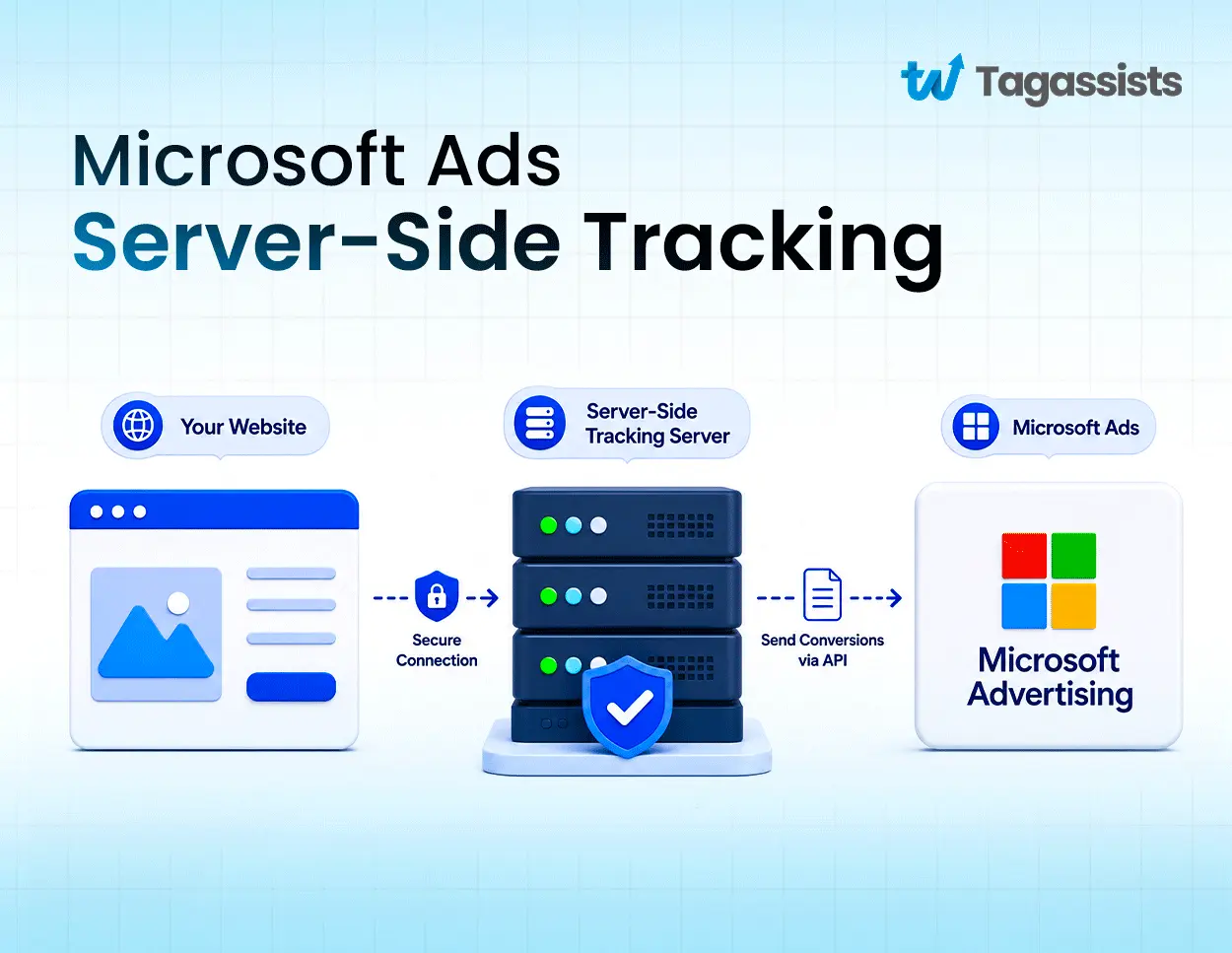
Microsoft Ads server-side tracking sends user interaction and conversion data directly from a web server or CRM to Microsoft Advertising, so there is no dependency on a browser-based pixel.
When the standard UET tag fires in a visitor’s browser, it depends on that browser cooperating. Ad blockers, privacy settings, and cookie restrictions all interfere. Server-side tracking moves the data transmission off the browser entirely. A company’s server acts as the intermediary, receiving event data and forwarding it to Microsoft Advertising through a secure API connection.
The flow looks like this:
- Browser-side (UET only): Visitor → Website → UET tag → Microsoft Ads
- Server-side: Visitor → Website → Your server or tracking platform → Microsoft Ads
Microsoft Advertising, formerly known as Bing Ads, uses this conversion data to power bidding algorithms, attribute sales to campaigns, and report on what is actually working. Without accurate conversion signals, automated strategies like Target CPA and Maximize Conversions are essentially guessing.
The UET Tag, CAPI, and Offline Conversions: How They Fit Together
These are three different pieces of the same measurement system, not three names for the same thing.
- UET (Universal Event Tracking) is Microsoft’s standard website tracking tag. It runs in the browser and tracks page views, purchases, sign-ups, and other on-site events. It is primarily client-side.
- CAPI (Conversions API) is Microsoft’s server-side solution for sending conversion data directly from a server to Microsoft Advertising. It can handle purchases, form submissions, CRM events, and offline sales. Microsoft recommends running CAPI alongside UET rather than replacing it. When both send the same conversion, an eventId prevents double-counting.
- Offline conversions handle situations where the meaningful conversion happens after the initial visit. A visitor clicks a Microsoft ad, submits a lead form, and buys three days later through a sales call. The offline conversions API lets the business send that later outcome back to Microsoft, matched to the original click via the Microsoft Click ID (msclkid).
Is Microsoft Ads CAPI Actually Available?
Yes. Microsoft’s Conversions API is officially available and no longer requires a closed beta invitation.
During its initial rollout, accessing CAPI required contacting a Microsoft account manager. That has changed. Authorization tokens can now be generated directly inside a Microsoft Advertising account under UET tag settings, or programmatically through the Campaign Management API. Microsoft has also published full implementation documentation on Microsoft Learn, including endpoints, required parameters, and hashing requirements.
Microsoft positions CAPI as a companion to UET, not a replacement. The two run in parallel, sharing a deduplication eventId so the same conversion is not counted twice.
For accounts that cannot access native CAPI directly, two practical alternatives exist. Community sGTM tag templates, the most widely used being the Microsoft Ads UET Conversion API template by Stape, provide a ready-built integration without requiring direct API development. The Offline Conversions API is the other option, particularly suited for B2B or CRM-based sales where the conversion happens after the initial website visit.
Why Microsoft Ads Server-Side Tracking Matters
Browser-level restrictions cause traditional client-side UET to miss an estimated 15 to 25% of conversion data. Server-side tracking recovers those signals and improves the quality of data feeding Microsoft’s bidding algorithms.
Microsoft Advertising’s 2026 documentation describes CAPI as a server-side method for sending online, offline, CRM, and app events while reducing reliance on browser-only tracking. Here is what that means in practice:
- Bypasses ad blockers and browser restrictions. Safari’s ITP, Firefox Enhanced Tracking Protection, and third-party ad blockers all interfere with browser-based pixels. A server-side call is not subject to these restrictions.
- Recovers lost conversions. Browser-only UET misses an estimated 15 to 25% of conversions from the causes above. Reported benchmarks show capture rates rising to 92 to 98% with UET plus server-side tracking.
- Improves Smart Bidding input quality. Enhanced CPC, Target CPA, and Maximize Conversions rely on conversion signals to adjust bids. One 2026 benchmark reports 12 to 22% additional signal recovery after server-side implementation. More complete data means better bidding decisions.
- Strengthens attribution with msclkid. The server can store and reuse the Microsoft Click ID when a lead later becomes a sale. Microsoft counts only the first offline conversion for a matching MicrosoftClickId and ConversionTime, which prevents duplicate imports.
- Enables CRM and offline conversion linking. Online clicks can be matched to offline outcomes- phone sales, CRM-qualified leads, in-person purchases- through a single server-to-server pipeline.
- Supports privacy compliance. PII like email addresses and phone numbers can be hashed before transmission, supporting GDPR and data minimization requirements.
- Improves cross-device attribution. Server-side tracking connects user actions across desktop, mobile web, and apps where cookies routinely fail.
For more on how conversion tracking works across ad platforms, the Google Ads conversion tracking guide covers parallel concepts that apply here.
How Does Microsoft Ads Server-Side Tracking Work?
Microsoft Ads server-side tracking sends conversion data from a server or tracking platform to Microsoft Advertising through an authenticated API call, rather than relying on JavaScript in the visitor’s browser.
The basic flow:
User clicks Microsoft Ad → Visits website → Takes an action → Server records the event → Microsoft Ads receives the event
Microsoft’s Conversions API is the primary server-side solution. It accepts purchases, form submissions, CRM events, and offline sales. Microsoft recommends using CAPI alongside the browser-based UET tag. When both send the same event, an eventId parameter handles deduplication automatically.
Three core mechanisms make this work:
- Direct server communication: Instead of browser JavaScript firing a pixel, the backend server sends an authenticated request directly to Microsoft’s API endpoint.
- msclkid for attribution: The Microsoft Click ID ties server-side events back to the original ad click, even when that click happened days earlier.
- Data enrichment: Server-side events can include CRM data, hashed user signals, transaction values, and offline outcomes that a browser tag would never have access to.
Four Ways to Set Up Microsoft Ads Server-Side Tracking
Each method serves a different situation. The right choice depends on technical resources, where conversions happen, and how much control over the data flow is needed.
Method | Best for | Technical difficulty | Setup time | Cost | Main advantage |
UET CAPI via sGTM | Businesses already using GTM/GA4 | Medium | Medium | Low–Medium | CAPI without building the integration from scratch |
Microsoft native CAPI | Larger businesses with developers | High | High | Development cost | Maximum control over payloads |
Offline Conversions + msclkid | Lead gen, CRM sales, offline outcomes | Medium–High | Medium | Low–Medium | Connects later business outcomes to ad clicks |
Google Ads Import + UET | Migrating an existing Google Ads setup | Low | Low | Low | Fastest way to establish basic coverage |
Method 1: UET Conversions API via Server-Side GTM
This method uses a server GTM container with the Stape community template to forward events from the site to Microsoft Advertising via CAPI. It is the most practical option for businesses already using GTM and GA4, since the server container can receive the existing GA4 event stream and route it to Microsoft without building a direct API integration from scratch.
The architecture is: Website → Web GTM → Server GTM → Microsoft Ads CAPI → Microsoft Advertising
Prerequisites:
- A functional GTM web container sending events to the server container
- A functional GTM server container with hosting (Google Cloud Platform or Stape)
- Microsoft Ads UET Tag ID
- Microsoft Ads CAPI authorization token (generated under Conversions → UET Tag settings in Microsoft Ads)
Step 1: Install the Microsoft CAPI template in sGTM
- Open the GTM server container.
- Go to Templates in the left sidebar.
- Click Search Gallery under Tag Templates.
- Search for “Microsoft Ads UET Conversion API by Stape.”
- Click Add to workspace and confirm the permissions.
Step 2: Configure the Microsoft CAPI tag
- Go to Tags and click New.
- Select Microsoft Ads UET Conversion API as the tag type.
- Enter the UET Tag ID and paste the CAPI authorization token.
- For Event Type Setup Method, select “Inherit from client.” This automatically maps standardized GA4 events like purchase and page_view to Microsoft’s CAPI schema. The “Standard” option is available if manual event mapping is preferred.
Step 3: Map user data fields
Expanding the User Data sections inside the template increases match quality and helps recover conversions blocked by browsers. Map these fields where available:
- Email address (the template handles hashing)
- Phone number
- IP address and user agent (usually passed automatically via the GA4 client)
Step 4: Handle deduplication
Running CAPI alongside browser-based UET means the same conversion can arrive through two channels. To prevent double-counting, the web GTM UET tag and the server GTM CAPI tag must send an identical eventId for the same conversion. Match this to the transaction_id or a custom event ID. Verify that the Event ID parameter in the sGTM tag configuration is explicitly mapped to pull this value from the incoming data stream.
Step 5: Configure the trigger
Create a trigger in the server container. For a broad setup, use a Custom Trigger where Client Name equals GA4. For specific conversion events only, trigger on Event Name equals purchase (or whichever events should be forwarded).
Step 6: Test and publish
Open Preview mode in the sGTM container. Trigger a conversion event on the live website. In the sGTM preview panel, confirm the Microsoft Ads UET Conversion API tag fired and returned a 200 OK response from the Microsoft endpoint. Once confirmed, publish the container.
Method 2: Microsoft's Native CAPI (Direct API Integration)
This method builds a direct server-to-server connection between a backend system and Microsoft’s CAPI endpoint. It offers the most control over event payloads and data but requires developer resources to implement and maintain.
The flow: Your backend → Microsoft CAPI → Microsoft Advertising
Step 1: Generate the auth token
In Microsoft Ads, go to Tools → Conversions → UET tag. Click Edit on the active UET tag, continue through the configuration, and select “Use Conversions API.” Microsoft generates a Bearer token. Copy it.
If the Conversions API option is not visible in the account, contact Microsoft Advertising support to provision CAPI access for the Customer ID.
Step 2: Implement client-side ID sync
CAPI still needs a lightweight client-side component to capture browser context and Microsoft IDs. Capture the msclkid from the landing page URL on arrival and store it in a first-party cookie or session variable. The backend needs access to this value when sending server-side events.
Step 3: Construct the API request
Send events to: POST https://capi.uet.microsoft.com/v1/{tagID}/events
Replace {tagID} with the UET Tag ID. Required HTTP headers:
Authorization: Bearer <Your_API_Access_Token>
Content-Type: application/json
Step 4: Format the JSON payload
					{
"events": [
{
"eventId": "evt_prod_1029384",
"eventName": "purchase",
"eventTime": "2026-08-25T14:05:00Z",
"eventSourceUrl": "https://example.com",
"userSignals": {
"clickId": "9a8b7c6d5e4f3g2h1i0j_msclkid",
"hashedEmail": "f660ab912ec121d1b1e928a0bb4bc61b15f5ad44d5efdc4e1c92a25e99b8e44a",
"hashedPhone": "e3b0c44298fc1c149afbf4c8996fb92427ae41e4649b934ca495991b7852b855"
},
"customData": {
"currency": "USD",
"value": 129.99
}
}
]
}
All personal user signals must be SHA-256 hashed before transmission.
Step 5: Validate and deduplicate
If UET and CAPI both run simultaneously, the eventId parameter must match across both streams for the same conversion. Include explicit consent signals in the payload to maintain compliant reporting.
Method 3: Offline Conversions API with msclkid
This method is designed for situations where the meaningful conversion happens after the website visit, such as a lead that closes in a CRM days or weeks later. It matches that later outcome back to the original Microsoft ad click using the msclkid.
Step 1: Enable auto-tagging
In Microsoft Ads, go to Settings → Account Level Options and check “Auto-tagging of Click ID (msclkid).” Save.
Step 2: Capture and store the msclkid
When a visitor arrives from a Microsoft ad, the URL contains the msclkid parameter. Use JavaScript to extract it and save it in a first-party cookie with up to a 400-day expiration. When the visitor submits a form, pull the cookie value into a hidden form field so it is stored in the CRM alongside the lead record.
Step 3: Create an offline conversion goal
In Microsoft Ads, go to Tools → Conversion Goals → New Conversion Goal. Select “Offline Conversions (Import via file or API)” as the source. Set the goal type, assign a tracking name (e.g., CRM_Lead_Close), and note the exact name since the API matches on this string. Associate it with the active UET Tag ID and save.
Step 4: Send the API payload
When the offline conversion occurs, send an authenticated HTTP POST to the Microsoft Advertising Offline Conversions API with these parameters:
- MicrosoftClickId: the stored msclkid from the original click
- ConversionName: the exact name of the conversion goal
- ConversionTime: UTC timestamp of when the conversion occurred (must be after the click time)
- ConversionValue: optional monetary value
					<ApplyOfflineConversionsRequest xmlns="https://microsoft.com">
  <OfflineConversions>
    <OfflineConversion>
      <ConversionName>CRM_Lead_Close</ConversionName>
      <ConversionTime>2026-08-25T14:00:00Z</ConversionTime>
      <ConversionValue>150.00</ConversionValue>
      <MicrosoftClickId>1234567890abcdef1234567890abcdef</MicrosoftClickId>
    </OfflineConversion>
  </OfflineConversions>
</ApplyOfflineConversionsRequest>
For teams that prefer not to write raw API code, sGTM can collect the msclkid via a web tag and forward it through a webhook to a server container, or middleware platforms like Tealium or AnyTrack can handle the CRM-to-Microsoft connection.
Method 4: Google Ads Import (Bridge for Basic Coverage)
This is not a true server-side tracking method. It is a migration tool that copies an existing Google Ads campaign and conversion structure into Microsoft Advertising. Useful for getting started quickly, but it still relies on browser-based UET for actual conversion measurement.
Step 1: Import campaigns and goals
In Microsoft Ads, go to Import → Import from Google Ads. Sign in with Google Ads credentials, select the campaigns to copy, and ensure “Import conversion goals” is checked under advanced options. Set a recurring sync schedule and start the import.
Step 2: Deploy the UET base tag
Imported conversion goals need an active UET tag to function. In Microsoft Ads, go to Tools → Conversions → UET tag and copy the Tag ID. In GTM, create a new tag using Microsoft Advertising Universal Event Tracking, paste the Tag ID, and set the trigger to fire on all pages. Publish the container.
Step 3: Understand the coverage gap
Imported goals depend on browser-based UET tracking. For true server-side coverage, this method needs to be supplemented with sGTM, native CAPI, or offline conversion mechanics. Google Ads Import is a starting point, not a complete server-side solution.
Which Method Should You Choose?
For most businesses already using GTM and GA4, sGTM with the Stape CAPI template is the most practical starting point.
It avoids building a direct API integration from scratch, works with the existing event stream, and supports the combined UET + CAPI approach Microsoft recommends. Matching event IDs handles deduplication.
Choose direct Microsoft CAPI when engineering resources are available and maximum control over the server-to-server payload is required. The backend handles authentication, event construction, user signal hashing, error management, and deduplication directly.
Choose offline conversions when the conversion that actually matters is recorded in a CRM or backend system rather than immediately in the browser. B2B lead generation, CRM-based sales, and phone-closed deals are the primary use cases.
Use Google Ads Import when the priority is getting an existing Google Ads setup into Microsoft Advertising quickly. If the goal is accurate server-side conversion tracking, follow it with sGTM, direct CAPI, or offline conversions.
In short: start with sGTM + CAPI for most web setups, move to direct CAPI when developer control is needed, and reach for offline conversions when outcomes happen after the session.
How to Set Up Microsoft Ads CAPI with Server-Side GTM (Step-by-Step)
The implementation below uses the Microsoft Ads UET Conversion API tag template by Stape. The full architecture once complete:
Website → Web GTM → Server GTM → Microsoft Ads CAPI → Microsoft Advertising
What You Need First
Before starting, make sure these are in place:
- A Microsoft Advertising account
- An active Microsoft UET tag
- A GTM server container with hosting configured (Google Cloud Platform or Stape)
- The website already sending events to the server container
- Access to the GTM web container
Get Your UET Tag ID and Set Up the CAPI Access Token
The process starts inside Microsoft Ads, where the UET tag generates the CAPI access token needed for the server container.
Step 1: Create or open the UET tag
In Microsoft Ads, go to Conversions → UET tag → Create (or open an existing active tag).
If creating new:
- Give the tag a name.
- Select the industry.
- Save it.
- Choose “Install the tag yourself.”
- Complete the setup.
Open the UET tag and copy the Tag ID. This connects the GTM implementation to the Microsoft Ads account.
Step 2: Add UET to the GTM web container
- In GTM, go to Tags → New → Microsoft Advertising Universal Event Tracking.
- Paste the UET Tag ID.
- Set Track type to Page view.
- Set the trigger to Initialization – All Pages.
- Name the tag something clear, like “Microsoft UET – Page View.”
- Save.
This establishes the basic client-side setup: Website → GTM → Microsoft UET → Microsoft Ads.
Step 3: Generate the CAPI access token
Open the active UET tag and click Edit. Continue through the configuration until Microsoft shows the setup method options. Select “Use Conversions API” and click Next. Microsoft generates a Conversions API access token. Copy it immediately alongside:
- The UET Tag ID
- The Microsoft Customer/Manager Account ID (CID)
Note: The account identifiers shown in Microsoft Ads are labeled AID (Account ID) and CID (Customer/Manager ID). The sGTM tag configuration uses the CID.
Step 4: Test the UET tag
Click Preview in GTM and open the website through the debugging interface. Confirm the Microsoft Ads tag fires on the Initialization event. Use Microsoft’s UET Tag Helper to verify that Microsoft receives the Page Load event and its parameters. Once confirmed, publish the GTM web container.
Import the Microsoft Ads Conversion API Tag Template
Open the GTM server container and pull in the Stape CAPI template from the community gallery.
- In the server container, go to Templates → Search Gallery.
- Search for “Microsoft.”
- Several Microsoft CAPI templates from different providers will appear.
- Select “Microsoft Ads UET Conversion API by Stape.”
- Add it to the workspace.
Once added, go to Tags → New and create a new tag using this template. Name it something like “Microsoft CAPI.”
Configure the Tag with IDs and Events
Open the new Microsoft CAPI tag and enter the identifiers collected from Microsoft Ads.
For Event Type Setup Method, select “Inherit from client.” This pulls event information from whatever the server container’s client receives, which in most setups is the GA4 event stream.
Then enter:
- UET Tag ID: paste the Microsoft UET Tag ID
- Access Token: paste the CAPI authorization token
- Microsoft Customer/Manager Account ID: enter the CID
The template also includes optional fields for anonymous ID, server event data, user data parameters, and additional event parameters. For a basic implementation, these can be left as is. For higher match rates and better attribution, mapping email, phone, and IP address into the user data fields is worth doing.
If the site uses form submissions as a tracked conversion event, the form tracking guide covers how to generate that form event in GTM so it can be routed server-side through this setup.
Set Up the GA4 Client Trigger
Configure when the Microsoft CAPI tag should fire inside the server container.
The server container needs a trigger that activates the CAPI tag when it receives events from the GA4 client.
- In the tag configuration, go to Triggering.
- Create a Custom trigger with the condition: Client Name equals GA4.
- Attach this trigger to the Microsoft CAPI tag.
- Name the tag, save it, and submit the server container version.
- Name the version (e.g., “Microsoft CAPI”) and publish.
The event flow at this point:
Website event → Web GTM sends event → Server GTM GA4 Client receives event → Client Name = GA4 → Microsoft CAPI tag fires → Event sent to Microsoft
Verify Events Are Flowing to Microsoft
Run the test before assuming everything is working.
- Open Preview mode in the sGTM container.
- Connect the web GTM container and navigate the live website.
- Trigger several test events: view_item, add_to_cart, begin_checkout, purchase.
- Return to the server container debugger and inspect each event.
- Confirm the Microsoft CAPI tag fired for the relevant events.
One known issue worth flagging: the Microsoft CAPI tag sometimes shows as “Failed” in the preview interface even when it successfully fired. Opening the tag details shows whether the data was actually transmitted. This appears to be a display bug in the preview panel.
Final verification:
Go to Microsoft Ads → Conversions and check whether events and parameters are arriving. Conversion values may take a few hours to populate. Other event parameters should be visible immediately.
The complete verification chain: Test event on site → Web GTM fires → Server GTM receives → Microsoft CAPI tag fires → Microsoft Ads shows event data.
MSCLKID and Enhanced Conversions: The Two Things That Make or Break Your Accuracy
Microsoft Ads uses two complementary matching methods to attribute conversions accurately: the msclkid for deterministic click attribution, and enhanced conversions for situations where the click ID is missing, blocked, or unusable.
The msclkid ties a conversion to the exact Microsoft Ads click that produced it. Enhanced conversions use consented, SHA-256-hashed first-party data, primarily email or phone, to match conversions when the click ID alone is not enough. Cross-device journeys, phone sales, and lost-cookie situations are where enhanced conversions does the most work.
The strongest setup stores both in the CRM or order system from the moment a lead arrives. Together, they give Microsoft two independent paths to attribute a conversion correctly.
How to Capture MSCLKID Server-Side and Hold It Longer Than 7 Days
page URL. That ID must be captured immediately, stored durably, and passed with the conversion when it eventually happens.
A browser cookie alone is not enough. Cookies can be deleted, blocked by privacy settings, or lost across subdomains and payment gateways. The msclkid needs to live in a server-side database or CRM, attached to the lead record, from first touch through final outcome.
Capture logic:
					const params = new URLSearchParams(window.location.search);
const msclkid = params.get('msclkid');
if (msclkid) {
  document.cookie =
    'msclkid=' + encodeURIComponent(msclkid) +
    '; Max-Age=' + (90 * 24 * 60 * 60) +
    '; Path=/; SameSite=Lax; Secure';
}
Copy it into a hidden form field:
					const match = document.cookie.match(/(?:^|;\s*)msclkid=([^;]+)/);
if (match) {
  const field = document.querySelector('[name="msclkid"]');
  if (field) field.value = decodeURIComponent(match[1]);
}
When the form submits, the msclkid travels into the CRM alongside the lead. For WooCommerce, attach it to the order record at checkout.
The recommended data model for each lead:
- lead_id
- msclkid
- first_touch_timestamp
- landing_page
- campaign_source
- conversion_stage
- conversion_value
- conversion_timestamp
- consent_status
A few things to get right from the start:
- Preserve the original click ID. Do not overwrite it with a later non-Microsoft click.
- Store the capture timestamp and landing page with the ID.
- Test redirects, multi-step forms, subdomains, form error states, and payment gateways. These are where the ID most commonly disappears.
- Keep the msclkid with the lead until the final business outcome is confirmed.
One clarification on the “hold it longer than 7 days” question: Microsoft’s offline conversion window is configurable, up to 90 days. Uploads outside that window can fail. Longer retention is supported by keeping the data in your own systems, not by extending Microsoft’s attribution limit beyond what the goal is configured to accept.
Setting Up Enhanced Conversions with Hashed Customer Data
Enhanced conversions supplements click-ID matching with hashed first-party customer data. Microsoft supports SHA-256-hashed email addresses and phone numbers for this purpose.
The workflow:
- Enable enhanced conversions on the relevant Microsoft Ads conversion goal.
- Collect email or phone only where legally permitted and disclosed.
- Normalize the value before hashing.
- Hash with SHA-256.
- Send the hashed value through the API or supported upload method.
- Monitor accepted, rejected, and unmatched records.
Email normalization before hashing:
const normalizedEmail = email.trim().toLowerCase();
const hashedEmail = SHA256(normalizedEmail).toString();
Steps: Remove leading and trailing spaces, convert to lowercase, hash with SHA-256, send only the hash. Never send the raw email.
Phone normalization before hashing:
Convert to international E.164 format first, removing all spaces, brackets, dashes, and formatting characters. Then hash. Do not hash an incorrectly formatted phone number and expect reliable matching.
Typical payload fields:
- msclkid
- hashed_email
- hashed_phone
- conversion_name
- conversion_time
- conversion_value
- currency
Enhanced conversions is most useful when the user converts on a different device, the original cookie is unavailable, a phone or email sale happens after the website visit, a lead qualifies in a CRM, or a browser event is blocked but consented first-party data exists.
Accuracy rules to follow without exception:
- Never send raw email or phone when the integration requires hashed values.
- Never hash before normalizing.
- Do not send placeholders like unknown@example.com, null, or undefined.
- Do not upload the same conversion through multiple routes without a deduplication plan.
- Use the actual conversion time, not the upload time.
- Match the conversion name exactly to the Microsoft Ads goal name.
- Keep conversion value and currency accurate.
- Validate msclkid and enhanced conversion matching separately. A sudden rise in reported conversions may indicate duplicate delivery, not better performance.
Event Deduplication: Running UET and CAPI Together Without Double-Counting
Running UET and CAPI simultaneously is what Microsoft recommends. But without a shared event ID, the same conversion gets counted twice.
When Microsoft receives a browser-based UET signal and a server-side CAPI signal for the same user action, it uses a shared eventId to merge them into a single reported conversion. Without that identifier, both signals count independently.
How Microsoft Deduplicates Events
Microsoft’s deduplication logic looks for a matching eventId across the UET and CAPI streams. When one is found, it merges the two into a single conversion record.
This only works when both the browser tag and the server-side tag send an identical eventId for the same conversion. The event name must also match across both channels. If either differs, Microsoft treats them as separate events and counts both.
Deduplication is not automatic. It requires deliberate configuration on both sides.
Setting Up Matching Event IDs Across UET and CAPI
The event ID should come from a value that exists at conversion time and is available to both the browser and the server, such as a transaction ID or a custom-generated session-level identifier.
For ecommerce, the transaction_id is the natural choice. For lead forms, generate a unique ID at form submission and pass it to both the web GTM container and the server-side CAPI tag.
In the web GTM container, the UET tag should include:
// Push to dataLayer at conversion
dataLayer.push({
event: ‘purchase’,
transaction_id: ‘ORDER-10293’, // this becomes the eventId
value: 129.99,
currency: ‘USD’
});
In the sGTM Microsoft CAPI tag, map the Event ID parameter to the same transaction_id field from the incoming event data. Verify this mapping explicitly in the tag configuration. Do not leave it unmapped and assume it passes through automatically.
For a deeper look at how duplicate events surface in reporting and how to catch them early, the duplicate events in GA4 guide covers the detection patterns that apply to Microsoft’s setup as well.
Do You Still Need the Browser UET Tag?
Yes, if Microsoft Ads remarketing audiences are part of the strategy.
CAPI handles conversion data well. It does not build Microsoft’s remarketing audiences. The UET tag is what populates those audiences by firing directly in the browser and syncing with Microsoft’s visitor tracking infrastructure.
The recommended setup for most accounts:
- UET tag: fires on all pages via GTM, captures page views, builds remarketing audiences, sends browser-side conversion events
- CAPI via sGTM: sends server-side conversion events alongside UET
- Shared eventId: passed across both channels for deduplication
- Send pixel request setting: enabled in the sGTM CAPI tag where supported, which allows the server to also fire a lightweight UET pixel on behalf of the browser
Running both gives Microsoft the most complete picture: browser context from UET, reliable conversion signals from CAPI, and deduplication via the shared event ID.
Where Microsoft Ads Server-Side Setups Quietly Go Wrong
Most Microsoft Ads server-side tracking failures are silent. No error message appears. Conversions just disappear from reporting, or numbers inflate without explanation.
These are the five failure modes that appear most consistently across implementations.
- The msclkid is never captured correctly: Microsoft cannot retrieve a missing click ID after the fact. It must be captured from the landing page URL at the moment of the visit. Redirects, cookie consent banners, cross-domain checkout flows, and form plugins can strip the parameter before it is stored. Test every path a visitor can take from ad click to form submission.
- Conversions are uploaded outside the attribution window: The conversion time must fall after the ad click and within the conversion goal’s configured window, commonly 30 days with a maximum of 90 days. Uploading based on CRM export time rather than actual conversion time causes silent rejections. Microsoft receives the upload, but does not report it.
- The conversion goal is not ready or belongs to the wrong account: The offline conversion goal must exist in the correct Microsoft Ads child account before any uploads are sent. Microsoft recommends waiting at least two hours after creating a goal before uploading conversions against it. Sending to a goal in the wrong account hierarchy produces no match and no error.
- Duplicate events look like improved performance: When the same conversion arrives through UET, CAPI, a CRM upload, and a WordPress plugin simultaneously, Microsoft’s deduplication depends on consistent identifiers across all routes. Inconsistent msclkid values, mismatched conversion names, or different conversion timestamps across channels can cause the same outcome to be counted multiple times. A sudden spike in reported conversions after a new implementation is worth auditing before celebrating.
- Hashed customer data is formatted incorrectly: Enhanced conversions can fail silently when email is not normalized before hashing, phone numbers are not converted to E.164 format, or placeholder values like null or undefined are sent in the hashed fields. The API may return a successful response while matching zero conversions. Validate normalization logic, consent flags, hash format, goal name spelling, and API response logs independently.
For GA4-side events that are not appearing in reports, which often share root causes with Microsoft-side gaps, the GA4 events not showing up guide and the Google Ads conversion tracking troubleshooting both cover diagnostic approaches that translate across platforms.
How Tagassists Sets Up Microsoft Ads Server-Side Tracking
Is Your Microsoft Ads
Tracking Accurate?
Fix data gaps with server-side tracking and get a clearer view of your campaign performance.
Conversion tracking across Microsoft Advertising’s network has real stakes. Microsoft’s search network reaches over 620 million unique searchers monthly, and businesses running Microsoft Ads without accurate conversion data are making budget and bidding decisions on a fraction of the signal they should have. Server-side tracking, when implemented correctly, consistently recovers 15 to 25% of conversions that standard UET misses.
At Tagassists, we handle the full implementation: msclkid capture logic, CRM integration, CAPI setup via sGTM or direct API, enhanced conversions with correct normalization and hashing, deduplication across UET and server-side channels, and ongoing validation. The work we did for FundedNext is a good example of what accurate tracking infrastructure looks like in practice for a business running paid acquisition at scale.
If Microsoft Ads server-side tracking is missing from the current setup, or if existing tracking has gaps that are affecting bidding and reporting, our tracking setup service covers the full implementation. For businesses that need GA4 and analytics reporting aligned alongside the ad tracking, the analytics setup service handles that layer too.
For context on how the same server-side principles apply across platforms, the Meta server-side tracking guide covers the CAPI implementation on the Meta side, which pairs well with a Microsoft Ads server-side setup for businesses running both channels.
Frequently asked questions
Does Microsoft Ads have a Conversions API?
Yes. Microsoft’s Conversions API is officially available and no longer requires a closed beta invitation. Authorization tokens are generated directly inside Microsoft Ads under UET tag settings. The API accepts website events, offline conversions, CRM data, and app events via server-to-server calls.
What is the difference between Microsoft Ads CAPI and offline conversions?
CAPI is designed for real-time or near-real-time server-side event tracking, typically website conversions sent from a server or sGTM container. Offline conversions are used when the meaningful outcome happens after the website session, such as a CRM-qualified lead or a phone-closed sale. Both use the msclkid for attribution, but offline conversions are uploaded in batches after the fact rather than sent in real time.
Do I need to disable the UET tag after setting up CAPI?
No. Microsoft recommends running both simultaneously. UET handles page-level data and remarketing audience building, which CAPI cannot do. Use a shared eventId across both channels to prevent double-counting conversions.
How much does Microsoft Ads server-side tracking cost?
Microsoft’s CAPI and UET are free. The main costs are hosting the server container (Google Cloud Platform starts at a few dollars per month, Stape offers managed hosting), and setup time or professional implementation fees if using an agency or specialist.
What is msclkid and why does it matter?
The msclkid (Microsoft Click ID) is a unique identifier Microsoft Ads appends to landing page URLs when auto-tagging is enabled. It ties a conversion back to the specific ad click that produced it. Without capturing and storing it correctly, offline and server-side conversions cannot be attributed to the right campaign, keyword, or ad.
Can I use one server container for Microsoft Ads, Google Ads, and Meta?
Yes. A single sGTM server container can route events to multiple ad platforms simultaneously. The same incoming event stream can trigger a Microsoft CAPI tag, a Google Ads conversion tag, and a Meta CAPI tag in parallel. Each platform’s tag handles its own authentication and payload formatting.
Do I need a developer to set up Microsoft Ads CAPI?
For the sGTM method using the Stape community template, a developer is not required if GTM is already in use. The native CAPI direct integration does require backend development work. Offline conversions sit in between: the msclkid capture needs a small amount of JavaScript, and the API upload typically needs backend scripting or a CRM integration.
How do I know if my server-side events are reaching Microsoft?
Test using sGTM Preview Mode to confirm the Microsoft CAPI tag fires and returns a 200 response. Then go to Microsoft Ads → Conversions and check whether events and parameters are appearing. Note that the sGTM preview panel sometimes shows a “Failed” status even when the event transmitted successfully. Open the tag details to confirm actual transmission status rather than relying on the status label alone.
My CAPI is set up but Smart Bidding is still underperforming. Why?
Smart Bidding needs a minimum volume of conversions to optimize effectively, typically 15 to 30 within a 30-day window. If conversion volume is low, the algorithm has insufficient data regardless of tracking accuracy. Other causes include conversion goals being set to secondary rather than primary, duplicate conversions inflating counts without improving signal quality, or a mismatch between the conversion actions Smart Bidding is optimizing for and the outcomes that actually matter to the business.
Where can you see conversion data in Microsoft Ads?
Go to Reports → Conversions in Microsoft Ads for aggregated conversion reporting by campaign, ad group, keyword, and ad. For server-side and offline conversion status, go to Tools → Conversion Goals and check the status column of each goal. Individual upload results for offline conversions appear under the Offline Conversions upload history. Event-level data with parameters is visible in the Microsoft UET Tag Helper browser extension during live testing.

Abdullah Al Zahid
Abdullah Al Zahid is the CEO & Founder of tagassists and a media buying specialist with over 4 years of experience. He has managed more than $7.5M in advertising spend, helping businesses grow through effective digital marketing, web analytics, and tracking solutions.