Google Ads Conversion Tracking: Complete Beginner-to-Advanced Guide
Last Update: June 21, 2026
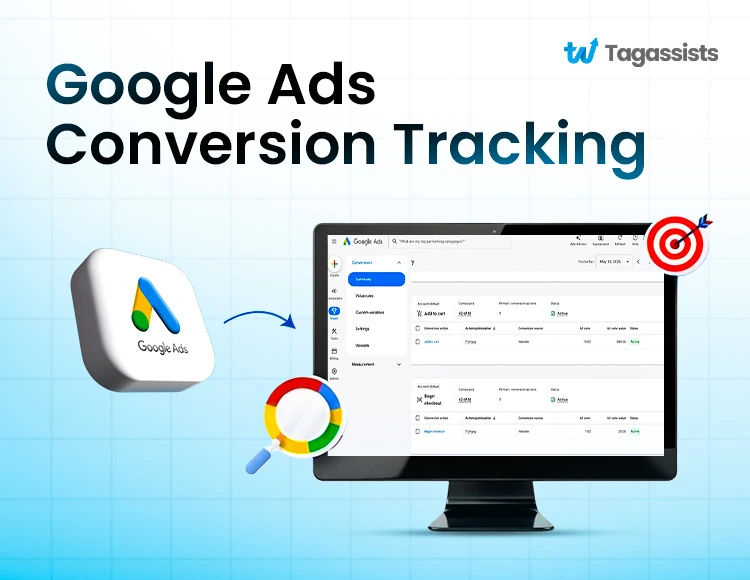
Google Ads Conversion Tracking connects ad clicks to real business outcomes, giving advertisers a clear view of what is working. Businesses that use conversion data can optimize campaigns, improve ROAS, and give Smart Bidding the data it needs to optimize results.
With the average Google Ads conversion rate around 7.5%, accurate conversion tracking can help you understand what is working and make better decisions to improve results.
Many advertisers have questions like:
- How do I set up Google Ads conversion tracking?
- Should I use Google Tag Manager or GA4?
- How can I improve tracking accuracy?
If you’ve asked any of these questions, you’re not alone.
Today, you’ll learn how Google Ads Conversion Tracking works, how to set it up correctly, common issues to avoid, and best practices for improving tracking accuracy.
If you want more reliable conversion data, better attribution, and cleaner reporting, Tagassists can help. We set up and audit Google Ads tracking, GA4, and Google Tag Manager.
Let’s know more about Google Ads Conversion Tracking.
What Is Google Ads Conversion Tracking?
When users interact with Google Ads, whether through clicks, view-through conversions, purchases, lead form submissions, phone calls, or app downloads, the data is tracked through Google Ads Conversion Tracking. It is a free, native measurement tool within Google Ads. Advertisers can easily measure which ads, keywords, campaigns, and bidding strategies directly drive valuable business outcomes.
Ads conversion trains Google’s algorithms to optimize for higher-value customers.
Modelled conversions are estimated conversions that Google predicts when some data is missing. Their accuracy is typically around 80–90%, but it can be lower when there is limited traffic, strict consent settings, or incomplete tracking data.
Types of Conversions You Can Track
- Purchases
- Leads
- Form submissions
- Phone calls
- App installs
- Newsletter signups
Core Technical Mechanism:
When a user clicks your Google ad, Google adds a unique GCLID (Google Click ID) to the URL and stores it in the browser. When the user completes a conversion action, the tracking tag fires on the confirmation page, captures the GCLID, and sends the conversion data back to Google Ads. This allows advertisers to track which ads and campaigns generated the conversion.
Why Google Ads Conversion Tracking Matters
Google Ads Conversion Tracking helps advertisers measure which ads, keywords, and campaigns drive valuable actions such as purchases, leads, and phone calls. This data enables better optimization, more accurate ROI measurement, and smarter bidding decisions.
Improve Campaign Optimization
Conversion tracking shows which ads, keywords, and campaigns generate actual results. This data helps advertisers optimize their campaigns more effectively, often leading to 20–35% more conversions or lower acquisition costs when using conversion-focused bidding strategies.
Measure Advertising ROI Accurately
Without conversion tracking, it is difficult to know whether ad spend is generating revenue. Businesses using Google Ads typically see an average ROAS of around 200%, meaning they earn about $2 for every $1 spent, while some Search campaigns can achieve significantly higher returns.
Enable Smart Bidding Strategies
Google’s Smart Bidding relies on conversion data to automatically adjust bids and improve performance. In many cases, automated bidding strategies outperform manual bidding, but they generally need at least 15–30 conversions within the last 30 days to learn and optimize.
Identify High-Performing Campaigns and Keywords
Conversion tracking helps identify which campaigns, keywords, and audiences drive the most valuable actions. Since conversion rates vary widely by industry, having accurate conversion data helps advertisers to focus their budget on the areas that deliver the best results.
Types of Google Ads Conversion Tracking
There are several types of Google Ads Conversion Tracking.
Website Conversion Tracking
Website conversion tracking records actions that happen on your website after someone clicks an ad. This could be a purchase, form submission, newsletter signup, or any other action that matters to your business. For most advertisers, this is the most important type of conversion tracking.
Phone Call Conversion Tracking
Not every customer fills out a form or buys online. Some prefer to call. Phone call conversion tracking shows which calls came from your Google Ads campaigns. You can better understand which ads are generating real leads and inquiries.
App Conversion Tracking
If your goal is to promote a mobile app, app conversion tracking measures actions such as installs, sign-ups, purchases, and in-app activity. This helps you see whether your ads are attracting users who actually engage with your app.
Offline Conversion Tracking
Many businesses close deals outside their website through phone calls, meetings, or sales teams. Offline conversion tracking lets you send those completed sales back to Google Ads. You can connect ad clicks with actual revenue.
Importing Conversions from Google Analytics 4 (GA4)
If you already track conversions in GA4, you can import them into Google Ads instead of creating them again. This keeps your reporting more consistent and gives Google Ads additional data to optimize your campaigns.
Prerequisites Before Setting Up Conversion Tracking
Before you start setting up Google Ads conversion tracking, make sure you have the right access and tools in place. Having these prerequisites ready will make the setup process smoother and help you avoid common tracking issues later on.
- Google Ads Account Access: First, make sure you have access to your Google Ads account. You will need it to create conversion actions and get the tracking code.
- Website Access: You should also have access to your website. This is required because the conversion tracking tag needs to be installed on specific pages.
- Google Tag Manager (Optional): Google Tag Manager is not required, but it makes implementation much easier. You can add and manage tracking tags without editing your website’s code directly.
- Google Analytics 4 (Recommended): It is a good idea to connect Google Analytics 4 with Google Ads. This gives you additional conversion data and makes reporting more accurate across both platforms.
How to Set Up Google Ads Conversion Tracking
Setting up Google Ads conversion tracking is straightforward once you know the steps. The process starts inside Google Ads, where you create a conversion action and define how Google should measure it. After that, you install the tracking tag and configure the event that will trigger a conversion.
Create a Conversion Action in Google Ads
Log in to your Google Ads account and go to Goals > Conversions > Summary. Click New Conversion Action and select the type of conversion you want to track.
Google allows you to track website actions, phone calls, app installs, offline sales, and imported conversions from GA4. Choose the option that matches your business goal.
Conversion Value Settings
Next, decide how you want to measure the value of each conversion.
If every lead or sale has the same value, you can assign a fixed amount. If you’re running an ecommerce store, it is better to use dynamic values so Google records the actual purchase amount for each transaction.
This helps you measure revenue more accurately and improve Smart Bidding performance.
Conversion Count Settings
Google gives you two options: Every and One.
Choose Every if you want to count every conversion after an ad click. This option is usually recommended for e-commerce stores where multiple purchases matter.
Choose One if you only want to count a single conversion per click. This is often used for lead generation campaigns where one lead is enough.
Conversion Window
The conversion window tells Google how long to keep tracking a user after they click your ad.
For example, if you set a 30-day conversion window, Google will record a conversion if the user completes the action within 30 days of clicking the ad.
Most advertisers use the default setting, but businesses with longer sales cycles may choose a longer window.
Attribution Model
The attribution model determines how credit is assigned to ad interactions before a conversion happens.
Google recommends Data-Driven Attribution for most advertisers. It uses historical conversion data to distribute credit across the customer journey.
If your account does not have enough data, Google may provide other attribution options.
Install the Google Tag Correctly
After creating the conversion action, Google will generate a tracking tag.
You can install the tag directly on your website using the Google tag (gtag.js) or through Google Tag Manager. Many advertisers prefer Google Tag Manager because it makes tracking easier to manage without changing website code.
Make sure the tag is installed correctly before moving to the next step.
Set Up the Conversion Event
The final step is defining when a conversion should be recorded.
For example, a conversion event can trigger when a visitor reaches a thank-you page after submitting a form. It can also fire after a purchase, phone call, newsletter signup, or another important action.
Once the event is configured, test it to confirm that conversions are being recorded inside Google Ads. A quick test now can save hours of troubleshooting later.
How to Set Up Google Ads Conversion Tracking Using Google Tag Manager?
Google Tag Manager (GTM) is the easiest way to install and manage Google Ads conversion tracking. Instead of editing your website’s code every time you need a new tag, you can handle everything from one dashboard. It also makes testing much easier before changes go live.
Installing the Google Tag (gtag.js) via GTM
Start by creating a new tag in Google Tag Manager. Choose the Google Tag tag type and enter your Google Ads Conversion ID.
Set the trigger to All Pages so the tag loads across your entire website. This installs the base Google tag but does not record conversions yet.
You should also create a Conversion Linker tag and fire it on all pages. This helps preserve click data such as the GCLID and improves conversion attribution.
Setting Up Conversion Event Tags in GTM
Once the Google Tag is installed, create a new Google Ads Conversion Tracking tag.
Enter the Conversion ID and Conversion Label provided by Google Ads. Then choose the trigger that should fire the conversion.
For example:
- A thank-you page after a form submission
- A completed purchase page
- A newsletter signup confirmation page
- A click on a phone number
- A button click that represents a lead
If you run an ecommerce store, configure dynamic values so Google receives the actual transaction amount instead of a fixed value.
Testing in GTM Preview Mode
Before publishing anything, test your setup in GTM Preview Mode.
Open Preview Mode and complete a test conversion on your website. Then check whether the conversion tag appears in the Tags Fired section.
You should also confirm that important data such as transaction value, currency, and transaction ID are being passed correctly. If the tag does not fire during testing, fix the issue before publishing.
A good practice is to test the entire journey from ad click to conversion. This helps catch problems that are easy to miss during setup.
Step | What to Check | How to Verify |
1 | Open GTM Preview mode | URL adds ?gtm_debug= parameter; GTM debug console loads in iframe hyperxmarketing |
2 | Navigate to conversion page | Check Tags Fired panel → Confirm “Google Ads Conversion Tracking” shows “Fired” google |
3 | Inspect tag payload | Click fired tag → Check Event Data → Verify transaction_id, value, currency are populated correctly hyperxmarketing |
4 | Check data layer | Open browser console → Type google_tag_manager[‘GTM-XXXX’].dataLayer → Verify transaction_value exists hyperxmarketing |
5 | Test without consent | Set consent to denied → Verify tag does not fire (Consent Mode v2) hyperxmarketing |
6 | Test duplicate firing | Refresh page 3 times → Verify tag fires once per page load only (not 2-3×) hyperxmarketing |
Publishing and Post-Launch Validation
Once everything is working correctly, publish your GTM container.
After publishing, complete a real test conversion and check the status inside Google Ads. It may take several hours before Google starts reporting conversion data.
Over the next few days, monitor your conversion reports and compare them with your website or GA4 data. Small differences are normal, but large discrepancies usually indicate a tracking problem.
It is also worth reviewing your setup every few months. Website updates, form changes, and new landing pages can sometimes break conversion tracking without anyone noticing.
Timeline | Validation Action | Metric to Verify |
0-2 hours | Check GTM published → Container version updated | Verify new version number in GTM workspace analyzify |
2-6 hours | Complete test conversion | Check Google Ads → Conversions → Status = “Recording conversions” analyzify |
6-24 hours | Wait for Google processing | Allow 2-12 hours for data to appear in reports analyzify |
Day 2-3 | Compare GTM vs Google Ads | GTM debug count should match Google Ads conversion count within 5% margin analyzify |
Day 7 | Validate enhanced conversions | Check Enhanced Conversions status = “Eligible” (not “Unverified”) hyperxmarketing |
For your convenience, we’ve shared this full video guide on Google Ads Conversion Tracking (2026) using Google Tag Manager.
Google Ads Conversion Tracking vs GA4 Conversion Tracking
Both tools track conversions, but they serve different purposes. Google Ads focuses on ad performance and optimization, while GA4 provides a broader view of user behavior across your website and marketing channels.
Feature | Google Ads Conversion Tracking | GA4 Conversion Tracking |
Main Purpose | Measures the performance of Google Ads campaigns | Measures user activity across the entire website |
Traffic Sources | Google Ads traffic only | All traffic sources (Google, social, email, direct, etc.) |
Best Use Case | Campaign optimization and Smart Bidding | User behavior and marketing analysis |
Conversion Attribution | Focuses on Google Ads interactions | Tracks conversions across multiple channels |
Smart Bidding Support | Directly used by Google Ads bidding algorithms | Must be imported into Google Ads first |
Reporting Focus | Ads, campaigns, ad groups, and keywords | Events, users, engagement, and customer journeys |
Conversion Data Speed | Designed for advertising optimization | Designed for analytics and reporting |
Recommended For | PPC managers and advertisers | Marketers and analysts |
Can Be Used Together? | Yes | Yes |
Best practice: Use GA4 to understand how users interact with your website and use Google Ads Conversion Tracking to optimize ad performance and bidding decisions.
Enhanced Conversions for Google Ads
Enhanced Conversions is a Google Ads feature that improves conversion tracking by using first-party customer data, such as email addresses, phone numbers, or names collected on your website. Before the data is sent to Google, it is securely hashed to protect user privacy. This helps Google match more conversions to ad interactions, even when browser cookies are unavailable or restricted.
Benefits of Enhanced Conversions
- Improves conversion measurement accuracy
- Recovers conversions that standard tracking may miss
- Helps reduce data loss caused by cookie restrictions
- Provides better signals for Smart Bidding
- Improves reporting across devices and browsers
- Uses hashed first-party data to support user privacy
- Helps advertisers make more informed optimization decisions
How Enhanced Conversions Improve Tracking Accuracy
Traditional conversion tracking relies heavily on browser cookies, which can be
- Blocked
- Deleted
- Restricted by privacy settings.
Enhanced Conversions uses consented first-party customer data to improve matching between ad clicks and conversions. This helps recover some of the missing conversion data and provides a more complete picture of campaign performance.
Common Google Ads Conversion Tracking Problems
Even a small tracking issue can lead to inaccurate conversion data and poor optimization decisions. Sometimes Google Ads conversion tracking does not work. Regular testing and validation can help you identify problems early and ensure your conversion tracking remains accurate.
- Conversions may not be recorded if the tracking tag is missing, misconfigured, or not firing correctly.
- Duplicate conversions usually occur when the same conversion action is triggered multiple times for a single user action.
- Incorrect conversion values are often caused by errors in value configuration or dynamic revenue tracking setup.
- Purchase data can be missing when transaction details such as value, currency, or transaction ID are not passed correctly.
- Conversion data may take several hours to appear in Google Ads due to processing and attribution delays.
- Cross-domain tracking issues can prevent conversions from being attributed correctly when users move between multiple domains during their journey.
How to Verify Google Ads Conversion Tracking Is Working
After setting up conversion tracking, it is important to verify that everything is working correctly. A quick validation can help you catch tracking issues before they affect your reporting and campaign performance.
Using Google Tag Assistant: Google Tag Assistant helps you confirm that your Google tags are installed and firing correctly. Simply visit your website and check whether the Google tag and conversion tracking tags are detected without errors.
Using Google Tag Manager Preview Mode: If you use Google Tag Manager, Preview Mode is one of the easiest ways to test your setup. Complete a test conversion and check whether the conversion tag appears in the Tags Fired section.
Checking Google Ads Conversion Diagnostics: Google Ads includes diagnostic tools that can identify common tracking issues. Navigate to your conversion action settings and review the status to see whether Google is successfully receiving conversion data.
Reviewing Conversion Reports: Finally, monitor your conversion reports inside Google Ads. If test conversions are appearing and the conversion status shows Recording conversions, your tracking setup is likely working as expected.
Tips for Accurate Conversion Tracking
Accurate conversion data is essential for measuring performance and making smart optimization decisions. Following a few best practices can help reduce tracking errors and ensure Google Ads receives reliable conversion data.
- Always test your conversion setup before publishing it to ensure tags fire correctly and conversions are recorded as expected.
- Google Tag Manager makes it easier to manage, update, and troubleshoot conversion tracking without editing website code.
- Enhanced Conversions help recover missing conversion data and improve measurement accuracy in privacy-focused environments.
- Check that conversion values are being passed correctly, especially for ecommerce transactions and revenue tracking.
- Make sure the same conversion is not being tracked by multiple tags or platforms at the same time.
- Review your conversion data periodically to catch tracking issues before they impact reporting and campaign performance.
- If users move between multiple domains during the conversion journey, configure cross-domain tracking to maintain accurate attribution.
- Regularly review your tracking setup to ensure it remains compatible with website changes, platform updates, and new privacy requirements.
How Conversion Tracking Impacts Smart Bidding
Conversion tracking provides the data that Smart Bidding uses to make automated bidding decisions. Without accurate conversion data, Google has no reliable way to understand which clicks lead to valuable outcomes and which do not.
Smart Bidding Strategies That Use Conversion Data
- Target CPA
- Target ROAS
- Maximize Conversions
- Maximize Conversion Value
These bidding strategies rely on conversion data to optimize performance automatically. Target CPA focuses on generating conversions at a desired cost, while Target ROAS aims to maximize revenue based on your return goals. Maximize Conversions tries to generate the highest number of conversions within your budget, and Maximize Conversion Value prioritizes the highest possible conversion value instead of conversion volume.
Google Ads Conversion Attribution Explained
- Attribution Models Overview
- Data-Driven Attribution
- Last Click Attribution
- Understanding Conversion Paths
Privacy, Consent Mode, and Future-Proof Tracking
As browser privacy restrictions continue to increase, Google relies more heavily on modeled conversions and first-party data to fill measurement gaps. However, modeled conversions are not generated automatically for every advertiser. Google needs enough real-world data before its algorithms can estimate missing conversions with reasonable accuracy.
Requirements for Modeled Conversions
To qualify for modeled conversions, Google generally requires:
- At least 700 ad clicks over a 7-day period
- A full 7 days of data collection
- A consent rate of 20% or higher
Without enough traffic or consented data, Google’s models may not have sufficient information to estimate missing conversions accurately.
Cookie Restrictions and Their Impact
Modern browsers and privacy regulations have made traditional cookie-based tracking less reliable than it was a few years ago. As more users block cookies or decline tracking consent, advertisers can lose visibility into conversions, which may affect reporting accuracy and bidding performance.
Consent Mode Basics
Consent Mode helps Google adjust how measurement works based on a user’s consent choices. When users decline tracking cookies, Google can use limited, privacy-safe signals to model some of the missing conversion data instead of losing it completely.
Parameter | Allowed Values | What It Controls |
ad_storage | ‘granted’ | ‘denied’ | Cookie storage for advertising developers.google |
analytics_storage | ‘granted’ | ‘denied’ | GA4 analytics cookies developers.google |
ad_user_data | ‘granted’ | ‘denied’ | Sending user data to Google for ads dataslayer+1 |
ad_personalization | ‘granted’ | ‘denied’ | Remarketing/personalized ads dataslayer+1 |
First-Party Data Strategies
First-party data has become increasingly important for accurate measurement. Tools such as Enhanced Conversions, Customer Match, and Offline Conversion Imports help advertisers use consented customer data to improve conversion tracking, audience targeting, and campaign optimization.
Preparing for a Privacy-First Future
The future of digital advertising will rely less on third-party cookies and more on first-party data, consent-based tracking, and privacy-focused measurement solutions. Businesses that invest in these strategies today will be better positioned to maintain accurate reporting and campaign performance in the years ahead.
Date | Change | Required Action |
June 15, 2026 | GA4 no longer overrides Ads consent behavior | Audit consent banner code; ensure Advanced Consent Mode implemented launchonline |
2026 H2 | Chrome third-party cookie deprecation begins | Migrate to server-side GTM + first-party data collection reddit |
2027 | Full third-party cookie phase-out | 100% reliance on first-party data + modeled conversions reddit |
Expected 2026–2027 | US state privacy laws expand (NY, TX, NJ, AL) | Implement GDPR-style opt-in consent nationwide reddit |
Three-Step Health Check (Before June 15, 2026)
Step | What to Audit | Success Criteria |
1. GCD Audit | Check “DNA” of tracking hits for consent strings | All consent parameters (ad_storage, ad_user_data, ad_personalization) present in every hit launchonline |
2. Privacy Disclosure | Update privacy policy to explicitly mention Google signed-in user data association | Policy includes: “We associate data with Google’s signed-in user information” launchonline |
3. Server-Side Verification | Ensure server isn’t stripping consent strings before reaching Google | Server logs show original consent parameters preserved launchonline |
Google Ads Conversion Tracking Audit Checklist
Even if your conversion tracking was set up correctly, things can break over time due to website updates, form changes, or tag modifications. Use this checklist regularly to ensure your tracking remains accurate and reliable.
Conversion Tracking Audit Checklist
- Google tag is installed on all required pages
- Conversion action settings match your business goals
- Conversion ID and Conversion Label are configured correctly
- Conversion tags fire on the correct conversion event
- Conversion values are passed accurately
- Transaction IDs are being recorded for purchases
- No duplicate conversion tags are firing
- Google Tag Manager Preview Mode tests successfully
- Google Tag Assistant shows no tag errors
- Conversion Linker tag is active
- Cross-domain tracking is configured correctly (if needed)
- Enhanced Conversions are enabled and verified
- Consent Mode is implemented correctly
- Test conversions appear in Google Ads
- Conversion status shows “Recording conversions”
- Google Ads and GA4 conversion numbers are reasonably aligned
- Smart Bidding is using the correct primary conversions
- Offline conversions are importing correctly (if applicable)
- No recent website changes have broken tracking
- Conversion tracking is reviewed at least once per quarter
How Tagassists Helps Businesses Improve Google Ads Conversion Tracking
Improve Your Google Ads
Conversion Tracking
Get reliable data that helps you optimize campaigns and increase conversions.
At this point, you can probably see that accurate conversion tracking involves more than just installing a tag. Things like Google Tag Manager, GA4, Enhanced Conversions, Consent Mode, cross-domain tracking, conversion values, and attribution settings all need to work together properly.
That is where our Tracking Setup Services and Analytics Setup Services can help.
At Tagassists, we help businesses set up and validate Google Ads conversion tracking, Google Tag Manager, GA4, Enhanced Conversions, server-side tracking, and conversion attribution so the data stays accurate across the entire customer journey.
The goal is simple. You should be able to trust your data. When the tracking is accurate, it becomes much easier to understand performance, improve ROAS, and make better marketing decisions with confidence.
Frequently Asked Questions
How Long Does It Take for Conversions to Appear?
Google Ads usually records conversions within a few hours, but in some cases, reporting can take up to 24 hours. Delays are normal, especially for new conversion actions.
Why Are My GA4 and Google Ads Conversions Different?
GA4 and Google Ads use different attribution models and reporting methods. Because of this, it is common to see slight differences between the two platforms.
What Is a Good Conversion Rate?
There is no single benchmark that applies to every business. However, the average Google Ads conversion rate across industries is around 7.5%, with some industries performing much higher or lower.
Should I Use GTM or Direct Tag Installation?
Most businesses should use Google Tag Manager because it is easier to manage, test, and update tracking tags. Direct tag installation may be suitable for simple setups, but it offers less flexibility.
How Do I Fix Missing Conversions?
Start by checking whether your conversion tag is installed correctly and firing on the intended conversion event. Tools such as Google Tag Assistant and GTM Preview Mode can help identify tracking issues quickly.
Conclusion
Google Ads conversion tracking helps you understand what happens after someone clicks your ad. It shows which campaigns, ads, and keywords are generating real business results, allowing you to make better marketing decisions based on actual data instead of guesswork.
The most important thing is to keep your tracking accurate. Regularly test your setup, review your conversion data, and use tools like Google Tag Manager, Enhanced Conversions, and Consent Mode to improve measurement. The better your conversion data, the better Google can optimize your campaigns and help you achieve stronger results from your ad spend.

Abdullah Al Zahid
Abdullah Al Zahid is the CEO & Founder of tagassists and a media buying specialist with over 4 years of experience. He has managed more than $7.5M in advertising spend, helping businesses grow through effective digital marketing, web analytics, and tracking solutions.