How to Set Up GoHighLevel Form Tracking in GA4 with GTM Server-Side Tracking
Last Update: September 16, 2026
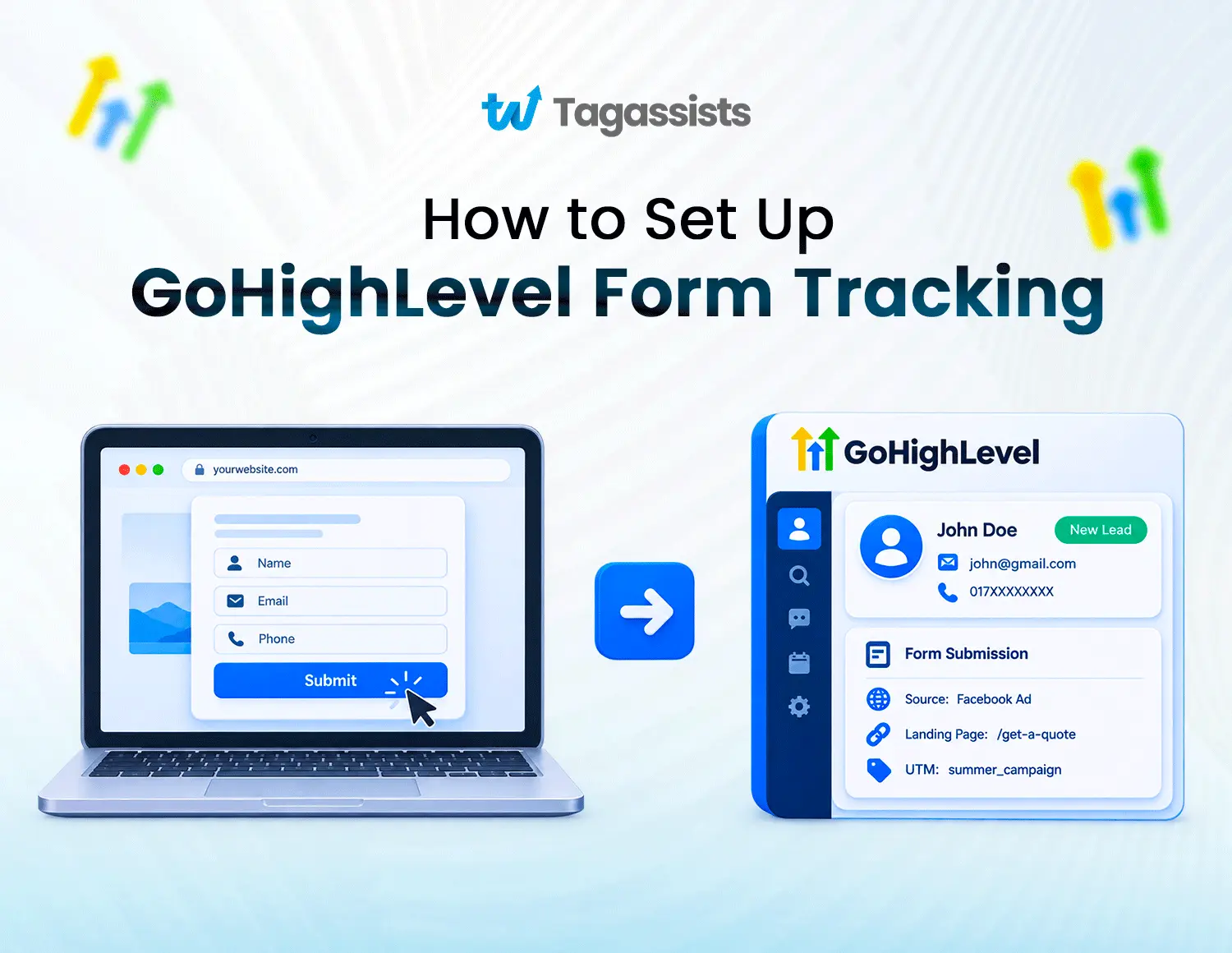
We have talked about Meta and WordPress server-side tracking setup using GTM, but GHL form tracking is a bit different because there is an iframe security wall inside a GHL form that needs to be bypassed using a postMessage listener.
For GoHighLevel form tracking in GA4 using Google Tag Manager (GTM) server-side tracking, you first need to capture the form submission through a Web GTM container and then route the event through a Server GTM container. The Web GTM container listens for the GHL form submission using the postMessage event, pushes the form submission data into the dataLayer, and then sends the event to the Server GTM container. From there, the server container can forward the event to GA4 and other platforms, such as Meta, depending on the tracking setup.
So, unlike a normal form where GTM can directly detect the submission, GHL needs an additional postMessage listener to communicate with the iframe and capture the submission event.
Tagassists is a tracking and analytics setup company focused on making your conversion data more reliable. We handle GHL tracking setups, so your ad spend goes toward decisions based on cleaner data. If you need help, we can set up the tracking for you from start to finish. But first, we will show you how we set up GHL form tracking using GTM.
We will cover the listener, dataLayer event, GTM trigger, GA4 event, testing, and common tracking mistakes. By the end, you will understand the setup and know what to check when tracking breaks.
What Is GoHighLevel Form Tracking with GTM?
GoHighLevel form tracking with GTM is the process of capturing every successful GHL form submission on your landing page or funnel, then sending that event with form and page data into Google Analytics 4 as a trackable conversion. Google Tag Manager handles the deployment, so you’re not editing any code inside the GHL funnel itself.
Because GoHighLevel forms load inside an iframe, they can only talk to the parent page through the browser’s postMessage API. When someone successfully submits a GHL form, the platform sends a message out from that iframe to the parent window. The custom JavaScript listener you’ve set up in GTM catches that postMessage and pushes a structured event into window.dataLayer, which GTM then reads to fire your GA4 event tag.
When any client comes to us, we suggest them to check the GHL lead count against what GA4, Google Ads, and Meta are actually reporting because the numbers don’t always line up. When we set up the entire GHL form tracking with GTM, it does more than confirm someone filled out a form. It stops duplicate lead events from firing, gives you tighter control over what actually counts as a conversion, and produces cleaner attribution across GA4, Google Ads, and Meta Pixel/CAPI.
This means button clicks, failed submissions, thank-you-page refreshes, and repeat fires from the same lead don’t get counted; only real, verified submissions make it into your reporting.
Why Standard Tracking Fails on GoHighLevel Forms (And How to Fix It)
The Iframe Security Wall inside a GHL form is the root cause of failure in accurate lead tracking.
GoHighLevel forms load inside an iframe, and iframes run on a different domain than your landing page (msgsndr.com or leadconnectorhq.com, not yours). The browser’s Same-Origin Policy blocks scripts on your page from reading what happens inside a cross-origin iframe. That’s why GTM’s standard Form Submission trigger and Element Visibility trigger don’t work here; they can’t see field inputs, clicks, or submit events firing inside the GHL iframe.
The Fix is a postMessage Listener. The workaround is the browser’s native window.postMessage() API, which is built specifically for cross-origin communication. When a visitor submits the form inside the GHL iframe, GoHighLevel automatically broadcasts a message to the parent window. A custom JavaScript listener, deployed through GTM on your page, catches that message, extracts what it needs (form ID, contact details, etc.), and pushes a clean ghl_form_submit event into the Data Layer. GTM then reads from the Data Layer to fire your GA4 and server-side tags.
How Does GoHighLevel Form Tracking in GA4 Work?
The GHL iframe sends a message when the form is completed. Your Web GTM listener catches and validates it, pushes it to the data layer, and fires the GA4 tag. That hit goes to your own server first, not straight to Google, where the server-side GA4 tag forwards it on. And from there it can also be routed to Google Ads, Meta, or your CRM if needed.
Visitor submits GHL embedded form
↓
GHL iframe sends postMessage
↓
Web GTM listener validates message
↓
dataLayer.push({ event: ‘ghl_form_submit’, … })
↓
GA4 Google tag in Web GTM fires generate_lead
↓
Web GA4 hit uses your first-party server endpoint
↓
Server GTM GA4 Client receives it
↓
Server-side GA4 tag forwards it to GA4
↓
Optional: server-side Google Ads / Meta / CRM tags
The Architecture of GoHighLevel Form Tracking in GA4
The setup works as a chain of separate, single-purpose layers. The GHL iframe just hosts and submits the form, Web GTM watches for that submission and turns it into a controlled event. The GA4 tag in Web GTM sends that event to your first-party server endpoint, Server GTM receives it and decides exactly what data gets forwarded on. Then GA4 is left to just handle reporting, funnel analysis, and conversions; none of the raw form data ever reaches GA4 directly.
Layer | Job |
GHL iframe | Hosts and submits the form |
Web GTM | Detects the form completion and creates a controlled event |
GA4 tag in Web GTM | Sends the lead event to the server endpoint |
Server GTM | Receives the GA4 request and forwards only approved data to GA4 and other destinations |
GA4 | Reporting, funnel analysis, audiences, and conversion reporting |
What Do You Need Before Setting Up GoHighLevel Form Tracking?
Before starting, make sure the following are in place:
- Google Tag Manager installed on your GoHighLevel landing page or funnel
- GA4 property created with a Measurement ID ready (G-XXXXXXXXXX)
- GA4 Configuration tag already published in your GTM container
- GoHighLevel funnel with a form embedded and accessible for testing
- GTM Preview Mode access for testing before publishing
- GA4 DebugView access for real-time event verification
- Access to submit a real test form submission during validation
- Stape.io account if planning to add server-side tracking for ad-blocker-resilient form tracking
What Tools Do You Need to Set Up GoHighLevel Form Tracking?
To track the GHL form lead you will need tools like GTM, GA4, GHL CRM access, GTM preview mode, and GHL tracking code.
Tool | Purpose |
Google Tag Manager | Where everything actually gets built, the Custom HTML listener tag, the triggers, the data layer variables, and the GA4 event tag all live here |
Google Analytics 4 | The destination for your generate_lead events; once they’re firing, you’ll see them in DebugView and later in your Engagement and conversion reports |
GoHighLevel | Your CRM and funnel builder, this is where the form itself lives, embedded as an iframe on the landing page you’re tracking |
GTM Preview Mode | Your testing ground before anything goes live, lets you confirm the listener and GA4 tags are actually firing, in the right order, before you publish |
GA4 DebugView | Shows your events landing in GA4 in real time, so you can confirm the event name and parameters look right immediately after a test submission |
GHL Tracking Code | The section inside your GoHighLevel funnel settings where you paste in the GTM container snippet, this is what gets GTM running on the page in the first place |
How to Set Up GoHighLevel Form Tracking with GA4 and GTM: Step-by-Step Implementation
GoHighLevel forms are often loaded inside an iframe, which means Google Tag Manager usually can’t detect the form submission using its normal form triggers. To get around this, we use a small custom JavaScript listener in GTM which is commonly used method. The listener watches for a successful GoHighLevel form submission and then pushes a custom event into the GTM dataLayer.
If you want to set this up, here’s what you need to do:
- Add a Custom HTML listener in GTM to detect the GoHighLevel form submission.
- Push a custom event such as ghl_form_submit into the dataLayer when the form is successfully submitted.
- Create a Custom Event trigger in GTM using ghl_form_submit.
- Create a GA4 Event tag and send the event as generate_lead.
- Test everything in GTM Preview and GA4 DebugView to make sure the event fires once and the correct form information is being passed.
- Once everything is working correctly, publish the GTM changes.
Check the five phases and the exact steps we’ve described so it becomes easier for you to understand what to do.
Phase 1: Set Up Google Tag Manager & Consent Mode
- Install GTM on the GoHighLevel funnel.
- If your site uses a consent management platform, deploy the Cookiebot banner snippet.
- Configure Google Consent Mode v2 before implementing any tracking tags.
Note: Consent Mode must be live first — tags fired before consent is configured can log data incorrectly or in violation of your consent settings.
Step 1: Deploy the Cookiebot CMP Tag
- Sign in to your Cookiebot Account and grab your Domain Group ID from the dashboard.
- Inside your Web GTM container, open Templates, then Search Gallery, and pull in the Cookiebot CMP template.
- Set up a new tag using that template:
- Tag Type: Cookiebot CMP
- Cookiebot ID: paste in the Domain Group ID you copied
- Trigger: Consent Initialization – All Pages
Step 2: Set Default Consent Mode v2 States
Before any other tag has a chance to fire, GTM needs a baseline consent state to work from. Add a Custom HTML tag on the Consent Initialization – All Pages trigger with the following:
					<script>

  window.dataLayer = window.dataLayer || [];

  function gtag(){dataLayer.push(arguments);}

  gtag('consent', 'default', {

    'ad_storage': 'denied',

    'analytics_storage': 'denied',

    'ad_user_data': 'denied',

    'ad_personalization': 'denied',

    'wait_for_update': 500

  });

</script>
This tells Consent Mode to assume everything is denied by default until the user actually interacts with the banner, with a 500ms window to wait for Cookiebot’s response before tags start evaluating.
Phase 2: Create the GoHighLevel Form Listener
- Create a Custom HTML tag in GTM to act as the listener.
- Add the listener code.
- Configure its firing trigger.
- Confirm the listener correctly detects form submissions.
How you detect the submission depends on how the form is embedded:
- Option A — Inline GHL forms: Use DOM/mutation-based detection to catch the submission event directly on the page.
- Option B — GHL iframe forms: Use cross-origin postMessage handling, since the form lives in an iframe outside your page’s DOM. Make sure your listener validates event.origin and doesn’t accept messages from arbitrary origins.
Step 1: Build the Listener Tag
- In your Web GTM container, go to Tags → New → Custom HTML.
- Add a listener that watches for postMessage events from the GHL widget, checks the payload against GHL’s known form/booking/survey signatures, and — once it confirms a real submission — writes the form ID and lead details to the data layer:
					<script>

(function() {

  window.addEventListener('message', function(event) {

    if (!event.data) return;

    var eventData = event.data;

    // GHL sometimes sends the payload as a JSON string rather than an object

    if (typeof eventData === 'string') {

      try {

        eventData = JSON.parse(eventData);

      } catch (e) {

        // Not JSON — ignore and move on

      }

    }

    var isGhlForm = false;

    var formId = '';

    var email = '';

    var phone = '';

    var name = '';

    // Match on the common GHL form-submission payload shapes

    if (eventData.type === 'ghl_form_submit' || eventData.message === 'form-submitted' || eventData.event === 'form_submit') {

      isGhlForm = true;

      formId = eventData.formId || eventData.form_id || 'ghl_lead_form';

      email = eventData.email || (eventData.inputs ? eventData.inputs.email : '');

      phone = eventData.phone || (eventData.inputs ? eventData.inputs.phone : '');

      name = eventData.name || (eventData.inputs ? eventData.inputs.full_name : '');

    }

    // Match on GHL's booking-calendar and survey payload shapes

    else if (Array.isArray(eventData) && (eventData[0] === 'msgsndr-booking-complete' || eventData[0] === 'ghl-form-submit')) {

      isGhlForm = true;

      var details = eventData[1] || {};

      formId = details.formId || details.calendarId || 'ghl_embedded_widget';

      email = details.email || '';

      phone = details.phone || '';

      name = details.name || '';

    }

    // Only push to the data layer once we've confirmed a genuine GHL submission

    if (isGhlForm) {

      window.dataLayer = window.dataLayer || [];

      window.dataLayer.push({

        'event': 'ghl_form_submit',

        'ghl_form_id': formId,

        'user_data': {

          'email': email,

          'phone_number': phone,

          'full_name': name

        }

      });

      console.log('GHL Tracking Listener: Captured Form Submit Event [Form ID: ' + formId + ']');

    }

  });

})();

</script>
Security note: Before this goes to production, add an event.origin check inside the listener so it only accepts messages from GHL’s actual domain — without it, any site could push fake data into your dataLayer.
Step 2: Set the Listener's Firing Trigger
- Trigger type: Initialization – All Pages
- Tag name: chtml – GoHighLevel Iframe Listener
This makes sure the listener is active on every page load, ready to catch the postMessage event whenever the visitor submits the embedded form.
Phase 3: Capture Form Data in the Data Layer
- Identify the form ID you want to track.
- Push the form-submission data into the dataLayer from your listener.
- Create the corresponding GTM Data Layer Variables (e.g., ghl_form_id) so the values are available to other tags/triggers.
The listener from Phase 2 is already pushing form ID and lead details into the dataLayer. This phase makes those values usable elsewhere in GTM by turning them into variables, then sets up the trigger that fires once a submission is confirmed.
Step 1: Create the Data Layer Variables
Go to Variables → User-Defined Variables → New → Data Layer Variable, and create one variable for each value below:
Variable Name | Data Layer Variable Name | Purpose |
dlv – ghl.form_id | ghl_form_id | Stores the GoHighLevel form or calendar identifier. |
dlv – user_data.email | user_data.email | Captures the lead’s email for Google Ads Enhanced Conversions |
dlv – user_data.phone | user_data.phone_number | Captures the lead’s phone number for offline match optimization |
dlv – user_data.full_name | user_data.full_name | Captures the lead’s name for full contact context |
Step 2: Create the Custom Event Trigger
- Go to Triggers → New → Custom Event.
- Set Event Name to ghl_form_submit.
- Name the trigger ce – ghl_form_submit.
This trigger fires whenever the listener confirms a real submission and pushes the ghl_form_submit event — it’s what the downstream GA4 tag in Phase 5 will fire on.
Phase 4: Create the Custom Event Trigger
- Identify the custom event name your listener pushes (e.g., ghl_form_submit).
- In GTM, create a Custom Event trigger:
- Trigger type: Custom Event
- Event name: ghl_form_submit
- If you only want to track specific forms, add conditions (e.g., matching on the ghl_form_id variable).
For bookings, repeat this with a separate event, e.g. ghl_booking_complete.
Phase 5: Configure the GA4 Lead Event
- Create a GA4 Event tag in GTM. Tags -> New -> Google Analytics: GA4 Event.
- Set it to fire on the Custom Event trigger from Phase 4:
- Event name: generate_lead
- Trigger: CE – GHL Form Submit
- Add event parameters as needed (see table below).
- Test the tag client-side before moving to server-side setup.
Suggested event parameters:
Parameter | Value |
form_source | gohighlevel |
form_id | Data Layer Variable ghl_form_id, if reliably available |
lead_type | A fixed descriptive value such as contact_request |
page_type | A data layer or lookup-table value |
event_id | A unique ID, if you plan to deduplicate across platforms |
Booking events: Use a separate trigger/tag pair for bookings:
- Trigger event: ghl_booking_complete
- GA4 event name: book_appointment
- Pass relevant parameters (e.g., form ID) the same way as the lead event above.
Phase 6: Implement Server-Side GTM
- Create/set up a GTM server container.
- Host it through a service such as Stape.
- Configure a first-party subdomain for the server container.
- Connect the web container to the server container.
- Create the server-side GA4 tag.
- Configure the appropriate client and tag settings.
Phase 7: Test, Verify & Publish
- Open GTM Preview mode and check both containers:
- Web container: confirm the client-side event fires as expected.
- Server container: confirm the request is received and processed.
- Verify the request reaches GA4.
- Check GA4 DebugView to confirm the event and its parameters look correct.
- Mark the event as a key event in GA4, if appropriate.
- Publish both the web and server GTM containers.
Phase 8: QA Checklist
Before publishing, verify all of the following:
- The GHL form is confirmed as either an iframe embed or a native GHL funnel form.
- You know the exact success signal from your form/widget.
- Your listener validates event.origin and does not accept messages from every origin.
- ghl_form_submit appears exactly once in Web GTM Preview.
- The GA4 generate_lead tag fires exactly once.
- The GA4 request is sent to your first-party server-side endpoint.
- Server GTM Preview shows one incoming GA4 request and one server GA4 tag firing.
- GA4 DebugView shows generate_lead with only approved parameters.
- No email, phone, full name, full address, or other PII appears in GA4 DebugView or network payloads.
- GA4’s conversion/key-event configuration is enabled only after end-to-end testing.
- Consent-denied users do not trigger prohibited marketing measurement.
Appendix: Sending Data Back to GoHighLevel (Server-Side GoHighLevel Tag)
The above phases track GHL form submissions into GA4. Separately, GTM’s server container also offers a GoHighLevel tag that works in the opposite direction, pushing data into GoHighLevel (e.g., creating/updating contacts). Use this if your setup also needs to sync leads back to GHL from the server container.
Note: This tag supports the GoHighLevel API v2 only; API v1 is no longer maintained. If you configured the tag before this update, update the template, then re-open each tag built from it and re-add the Private Integration Token and Location ID.
- Add the GoHighLevel tag template:
Go to your server GTM container → Templates → Tag Templates → Search Gallery → find “GoHighLevel” → Add to workspace.
- Create a new tag:
Go to Tags → New → choose tag type GoHighLevel.
- Configure the tag:
Private Integration Token An authorization token that lets the systems call the GoHighLevel API (v2.0) without a full OAuth2 flow.
- Generate a Private Integration Token with the contacts.write (or Edit Contacts) scope.
- Add it to the tag.
- The token must be created at the Sub-Account level, not the Agency level.
- For detailed steps, refer to GoHighLevel’s documentation or their setup video guide.
Location ID (Sub-Account ID) A unique identifier for each sub-account within your agency account, used to identify the client’s account accurately.
- Found in the client’s Business Profile.
- See GoHighLevel documentation for exact steps.
Contact fields Configure what data creates/updates a contact:
- Phone number or email is required.
- You can also collect first name, last name, address, and other fields listed in GoHighLevel’s documentation.
- Add a trigger to the tag:
Attach the appropriate trigger so the tag fires on the right event.
- Test the tag:
Trigger the event in both the web and server GTM containers to confirm it fires correctly. If you run into issues, refer to the debugging and monitoring guide for this tag.
Why GoHighLevel Form Tracking in GA4 Matters
No doubt, GoHighLevel form tracking in GA4 turns GHL lead submissions into measurable conversions; also, a GHL form submission can be the bridge between marketing data and CRM data, where accurate lead events help distinguish traffic that simply clicks from traffic that takes a meaningful action. You can build a landing-page-to-lead funnel, compare channel and campaign lead-conversion rates, and create audiences of lead submitters for reporting or permitted remarketing.
Capturing UTMs and Google click identifiers such as gclid at the time of submission helps preserve that bridge. We have seen this common problem on Reddit, and people are sharing the solution. A Reddit user’s advice is to use hidden fields or a tracking script to save the GCLID from the URL, since GHL will not retain it if there is no field configured to capture it.
Look at this example of one of our clients; previously, they set up the GA4 tracking.
Google Ads clicks: 5,000, GHL contacts created: 70, GA4 conversions: 30
These 40 missing leads can be for any cause: a broken GTM trigger, an iframe the standard GTM trigger simply can’t detect, consent or browser restrictions blocking the tag, or a tag firing before GA4 has loaded.
It Matters for Lead Gen Businesses:
- For any business running paid traffic to a GHL funnel, the form submission is the conversion event.
- Without accurate tracking, there’s no reliable link between ad spend and actual leads.
- Every optimization and budget decision ends up based on clicks and sessions, not real qualified leads.
What You Gain Once Tracking Is Set Up Correctly:
- Every form submission fires a trackable GA4 event, with the form ID and page URL attached as parameters.
- Google Ads gets real lead signals, so Smart Bidding can optimize toward actual submissions instead of clicks.
- GA4 reporting shows exactly which campaigns, pages, and traffic sources drive the most completed forms.
- Marking the event as a GA4 key event lets you import it into Google Ads for lead-based Target CPA / Target ROAS bidding.
- Clean, deduplicated lead counts mean you can trust your numbers when reporting to clients or stakeholders.
Common GoHighLevel Tracking Mistakes and How to Fix Them
Even when the tracking setup looks correct, a few common mistakes can lead to missed, duplicated, or inaccurate conversions. Below are the most common issues to watch for, along with the right way to fix each one.
1: Using Only a Shared Thank-You Page as the Conversion
This Reddit thread shows a user sharing the problem of “Landing Page 1 shows 21 form submissions in the last 30 days. On google ads its only showing 14 conversions.” Relying on one generic thank-you page to signal a conversion across multiple forms or funnels is unreliable; that page can be reached by a direct visit, a bookmark, or a refresh with no form ever submitted, and if it’s shared across different forms, you can’t tell which one actually converted. Revisit it twice, and you might count the same lead twice too.
Fix: Fire the conversion off a verified completion signal instead- a GHL success event, a DOM confirmation element, or the iframe postMessage this setup already uses- and treat the thank-you page as a secondary check at most, not your source of truth.
2: Sending PII Directly as GA4 Event Parameters
It’s tempting to push email, phone, or full name straight into the generate_lead event as parameters. GA4’s terms prohibit collecting PII, and doing so risks your property getting flagged or suspended; plus, it shows up in DebugView and network payloads where anyone with access can see it.
Fix: Keep PII in the data layer for tags that need it (like GHL’s own contact tag), but strip it out before it reaches the GA4 tag. Only pass non-identifying parameters like form ID, page type, and lead type.
3: Skipping the event.Origin Check in the Listener
A postMessage listener that accepts messages from any source, not just GoHighLevel’s domain, can be tricked into firing on fake data from another script or malicious page. This makes your lead counts unreliable and technically exploitable.
Fix: Add an event.origin check inside the listener so it only processes messages coming from GHL’s actual domain (msgsndr.com / leadconnectorhq.com).
4: Listener Tag Firing on Specific Pages Instead of All Pages
If the Custom HTML listener only fires on a specific funnel URL, it might not be registered yet when the GHL iframe loads, especially for visitors who submit the form almost immediately.
Fix: Set the listener’s trigger to Initialization – All Pages, so it’s active before the GHL form can even load.
Default GTM Form Trigger vs. Custom GHL Listener
The difference between these two comes down to one thing: whether the trigger can actually see inside the GHL iframe. GTM’s default Form Submission trigger was built for forms sitting directly in your page’s DOM, so it has no way to detect anything happening inside a cross-origin iframe. The custom listener, on the other hand, doesn’t try to look inside the iframe at all; it just waits for the postMessage GHL broadcasts once a submission goes through, which is the one channel that’s actually allowed to cross that boundary.
Default GTM Form Trigger | Custom GHL Listener | |
Detects iframe-embedded forms | No | Yes |
Setup required | Built-in, no code | Custom HTML tag with JavaScript |
Fires on GHL forms | Never (blocked by Same-Origin Policy) | Yes, on verified submission |
Detects dynamic/AJAX submissions | No | Yes |
Risk of false positives | Low, but irrelevant here since it never fires | Low, if event.origin is validated |
Setup complexity | Minimal | Moderate, requires JS and testing |
Reliability on GHL funnels | None | High, once validated in Preview/DebugView |
How Tagassists Sets Up GoHighLevel Form Tracking with GTM
One of our clients spent a good budget on Google Ads, and the results looked like this: Google Ads clicks: 4,200, GHL form submissions: 95, and GA4 conversions: 160. The frustration was obvious, and the actual reason we found was that GA4 was recording more conversions than the actual GoHighLevel form submissions. This usually points to duplicate firing, refresh-based tracking, or a thank-you page being counted more than once.
We set up GA4 tracking for GHL forms with GTM, where we used a postMessage listener to bypass the iframe.
Before it becomes a nightmare for your ad spend, check out our tracking setup service, where we can set up your GHL form tracking with GA4, along with Microsoft Ads Server-Side Tracking, WordPress Server-Side Tracking, Meta Server-Side Tracking, or whatever platform tracking you need.
Frequently asked questions
Can you track GoHighLevel form submissions in GA4?
Yes. You can track GoHighLevel form submissions in GA4 by detecting a successful submission in GTM and sending it as a GA4 event such as generate_lead.
Why is GTM not detecting my GoHighLevel form submission?
Many GoHighLevel forms are loaded inside an iframe, so standard GTM form submission triggers cannot directly access them. A custom listener or postMessage-based setup is usually needed.
How do I track a GoHighLevel iframe form with Google Tag Manager?
You can use a Custom HTML listener in GTM to listen for the form’s completion message and then push a custom event such as ghl_form_submit into the dataLayer.
What GA4 event should I use for GoHighLevel lead forms?
For lead-generation forms, generate_lead is usually the most appropriate GA4 event. You can also pass additional parameters such as the form ID or lead type.
Can I track multiple GoHighLevel forms separately in GA4?
Yes. Pass the GoHighLevel form ID into the dataLayer and use it as an event parameter or GTM condition to identify which form generated the conversion.
Do I need server-side GTM for GoHighLevel form tracking?
No. Basic form tracking can work with a normal web GTM container. Server-side GTM is an additional layer that can give you more control over how measurement requests are processed and sent.
How do I test GoHighLevel form tracking before publishing?
Use GTM Preview mode to confirm the custom submission event and GA4 tag fire correctly. Then check GA4 DebugView to make sure the event and expected parameters are reaching GA4.
Should I track conversions using the GoHighLevel thank-you page?
A thank-you page can be used as a secondary check, but it should not be your main conversion signal. A verified form completion event is more reliable and helps prevent duplicate or false conversions.
Why are my GoHighLevel form submissions and GA4 conversions different?
Differences can happen because of duplicate tracking, consent settings, blocked scripts, incorrect triggers, iframe limitations, or GA4 configuration. Testing the full submission flow in GTM Preview and GA4 DebugView helps identify the issue.
Can I use the same GoHighLevel form event for Google Ads conversions?
Yes. Once GTM captures a verified form submission, the same custom event can be used to trigger both GA4 measurement and Google Ads conversion tracking, depending on your setup.

Abdullah Al Zahid
Abdullah Al Zahid is the CEO & Founder of tagassists and a media buying specialist with over 4 years of experience. He has managed more than $7.5M in advertising spend, helping businesses grow through effective digital marketing, web analytics, and tracking solutions.